Καλύτερο Λογισμικό Υποτιτλισμού Βίντεο το 2026 - Κορυφαία Εργαλεία που Θα Πρέπει να Δοκιμάσετε

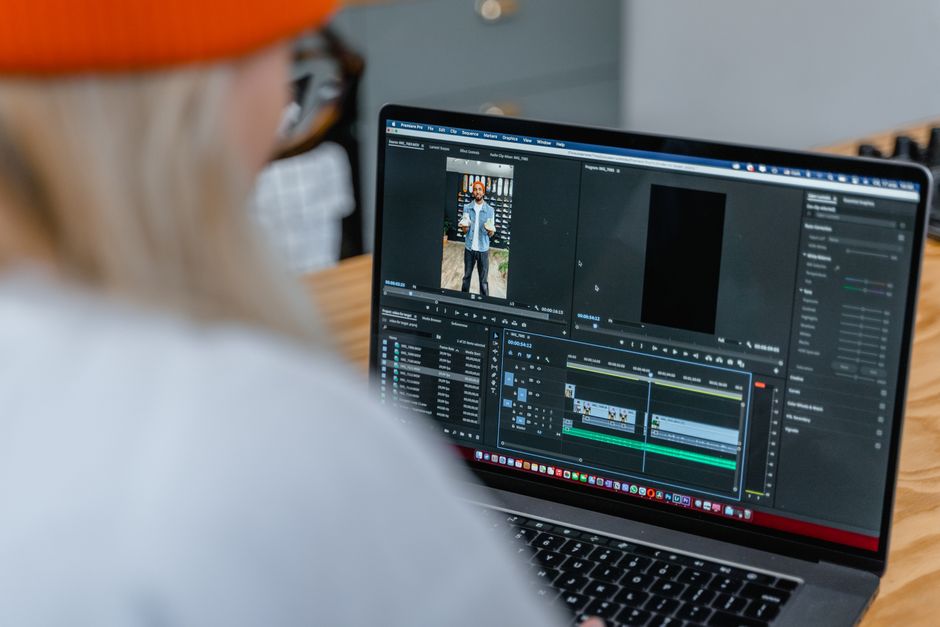
Το Descript είναι η καλύτερη αρχική σας επιλογή για το 2025. Παρέχει γρήγορους, ακριβείς υπότιτλους, χειρίζεται την κίνηση με έξυπνη αυτόματη λεζάντα, και προσφέρει γρήγορο κλιπάρισμα για να μετατρέψει ωμό υλικό σε έτοιμα για δημοσίευση καρέ για κοινωνικά δίκτυα και πλατφόρμες. Αυτή η λύση κλιμακώνεται σε ομάδες και βοηθά να διατηρήσετε την ροή εργασιών προσωπική ενώ βελτιώνετε τις δεξιότητές σας.
Το Kapwing ξεχωρίζει για γρήγορο, βασισμένο σε cloud υποτιτλισμό που ποικίλλει σε πολυπλοκότητα, από γραπτά μεταγραφές σε αυτόματα συγχρονισμένους υπότιτλους. Υποστηρίζει πολλαπλές πλατφόρμες και προσφέρει ευέλικτα πακέτα για μεμονωμένους δημιουργούς και μικρές ομάδες. Ελέγξτε κριτικές για να συγκρίνετε ταχύτητα και ακρίβεια σε πραγματικά έργα, και εφαρμόστε μερικές συμβουλές για να αξιολογήσετε την καταλληλότητα και να αποκαλύψετε τη μαγεία της αυτοματοποίησης.
Το VEED.io ξεχωρίζει για γρήγορο κλιπάρισμα και υπότιτλους κίνησης, με φιλική προσωπική ροή εργασιών που κλιμακώνεται σε ομάδες και καλύπτει πολλαπλές πλατφόρμες. Εξετάστε κριτικές για να αξιολογήσετε ακρίβεια και εξοικονόμηση χρόνου, στη συνέχεια δοκιμάστε την συνέπεια των υπότιτλων σε διαφορετικά καρέ για να επιβεβαιώσετε την καταλληλότητα.
Ο οδηγός εστιάζει στην εξάλειψη της χειροκίνητης μεταγραφής, και αυτά τα εργαλεία προσφέρουν κέρδη σε λεπτά αντί για ώρες. Οι περισσότεροι προμηθευτές προσφέρουν πακέτα που περιλαμβάνουν αυτόματο υποτιτλισμό με αρχειοθετημένα γραπτά αρχεία καταγραφής και εξαγωγές για κοινωνικά αναρτήσεις, ολόκληρες βιβλιοθήκες βίντεο, και καρέ βελτιστοποιημένα για διάφορες πλατφόρμες. Δημιουργήστε μια σύντομη λίστα και κάντε μια γρήγορη σύγκριση σε τρία έργα για να δείτε ποιο ταιριάζει καλύτερα στις ανάγκες σας σε κίνηση και κλιπάρισμα.
Καλύτερο Λογισμικό Υποτιτλισμού Βίντεο το 2025
Ξεκινήστε με το Descript ως το βασικό σας εργαλείο υποτιτλισμού για το 2025. Συνδυάζει έναν αποδοτικό επεξεργαστή με γρήγορο αυτόματο υποτιτλισμό, επιτρέποντας στην ομάδα να δημιουργήσει συγχρονισμένες πίστες υπότιτλων σε μία διέλευση. Η επεξεργασία βασισμένη σε χρονοδιάγραμμα διατηρεί τους υπότιτλους ευθυγραμμισμένους καθώς κόβετε ή αναδιοργανώνετε σκηνές, και οι προτάσεις τύπου βοηθού επιταχύνουν τις διορθώσεις, μειώνοντας την κουραστική χειροκίνητη εργασία κατά τη δημιουργία.
Για έργα που χρειάζονται υψηλότερη ακρίβεια, συνδυάστε το Descript με Amberscript ή Trint, τα οποία βασίζονται σε διαφορετικά μοντέλα και υποστηρίζουν ολοκλήρωση τρίτων μερών. Αυτές οι επιλογές επεκτείνουν την κάλυψη σε διαφορετικές προφορές και θορυβώδη περιβάλλοντα, βελτιώνοντας την ποιότητα των υπότιτλων σε γυρίσματα με πολλαπλά μικρόφωνα και κάμερες.
Η επέκταση πολυγλωσσικών ροών εργασιών έχει πλέον σημασία: εργαλεία με επεκτεινόμενη υποστήριξη γλωσσών σας επιτρέπουν να διακλαδώσετε σε εναλλακτικούς υπότιτλους σε διαφορετικές γλώσσες χωρίς να διπλασιάσετε τα χρονοδιαγράμματα.
Η ευελιξία σχεδιασμού και εξαγωγής έχει σημασία: προσαρμόστε τον σχεδιασμό υπότιτλων (γραμματοσειρά, μέγεθος, αλλαγές γραμμής) και μορφές εξαγωγής όπως SRT και VTT. Μια εφαρμογή iPad επιτρέπει στους επεξεργαστές να σημειώσουν υπότιτλους στο σετ ή κατά τα ταξίδια, ενώ συγχρονίζονται με πολλαπλές κάμερες σε γυρίσματα multi-cam.
Έλεγχοι ποιότητας και βαθμολόγηση: ρυθμίστε αυτόματους ελέγχους και ανθρώπινους ελέγχους στον επεξεργαστή για να βελτιώσετε την ακρίβεια· αναθέστε εργασίες στην ομάδα σας και παρακολουθήστε την πρόοδο.
Τιμολόγηση και καταλληλότητα: αναζητήστε πακέτα που καλύπτουν μεγάλους αριθμούς ωρών και προσφέρουν κλιμακούμενα πακέτα· εξετάστε εργαλεία που παρέχουν πρόσβαση API για αυτοματοποίηση και ροές εργασιών τρίτων.
| Εργαλείο | Καλύτερο Για | Κύρια Χαρακτηριστικά | Περίπου Τιμή (μηνιαία) |
|---|---|---|---|
| Descript | Όλα-σε-ένα υποτιτλισμός και επεξεργασία | αυτόματοι υπότιτλοι, ενσωματωμένος επεξεργαστής, επεξεργασία βασισμένη σε χρονοδιάγραμμα, διακλάδωση, εφαρμογή iPad, έλεγχοι | Από περίπου 12–15 USD |
| Amberscript | Υψηλής ακρίβειας μεταγραφή με υποστήριξη γλώσσας | πολλαπλά μοντέλα γλώσσας, επεξεργαστής φιλικός προς τον άνθρωπο, ολοκληρώσεις τρίτων | ≈15–35 USD |
| Trint | Συνεργατικός υποτιτλισμός για ομάδες | επεξεργαστής ιστού, εξαγωγές SRT/VTT, λεπτομερή εργαλεία επεξεργασίας | ≈20–40 USD |
| Sonix | Γρήγορη επεξεργασία για πολυγλωσσικούς υπότιτλους | υποστήριξη πολυγλώσσων, πρόσβαση API, έλεγχοι, εξαγωγές | ≈10–25 USD |
| Otter.ai | Υπότιτλοι σε πραγματικό χρόνο για συναντήσεις και σημειώσεις βίντεο | ζωντανοί υπότιτλοι, ολοκληρώσεις, βασικός επεξεργαστής | ≈8–16 USD |
Kapwing: Ροή εργασιών αυτόματου υποτιτλισμού, εγκατάσταση και συμβουλές πρώτης εκτέλεσης
Kapwing: Ροή εργασιών αυτόματου υποτιτλισμού, εγκατάσταση και συμβουλές πρώτης εκτέλεσης
Ενεργοποιήστε τον αυτόματο υποτιτλισμό στην πρώτη εκτέλεση για να μειώσετε τον χρόνο μεταγραφής και να διατηρήσετε τους υπότιτλους συγχρονισμένους με τον λόγο. Αυτός ο επεξεργαστής βασισμένος σε πρόγραμμα περιήγησης έχει βασιστεί από επεξεργαστές για σύντομα και μεγαλύτερα βίντεο, και σας βοηθά να διατηρήσετε συνεπείς υπότιτλους σε σκηνές. Μετά την παραγωγή, ελέγξτε τον συγχρονισμό, διορθώστε λανθασμένα ακουσμένα λόγια, και γυαλίστε την στίξη σε επαγγελματικό επίπεδο. Αν εργάζεστε με πολυγλωσσικό κοινό, χρησιμοποιήστε μετάφραση για να προσθέσετε γλώσσες χωρίς να ξεκινήσετε ξανά.
Τα βήματα εγκατάστασης είναι γρήγορα: ανεβάστε το βίντεό σας σε νέο έργο στον επεξεργαστή βασισμένο σε πρόγραμμα περιήγησης του Kapwing, επιλέξτε τη βασική σας γλώσσα, και ενεργοποιήστε το Auto-caption. Ο γεννήτορας δημιουργεί μια πρώτη διέλευση που μπορείτε να περιηγηθείτε σε λιγότερο από πέντε λεπτά για ένα τυπικό κλιπ 2–3 λεπτών. Για ροές εργασιών multicam, ενεργοποιήστε το χρονοδιάγραμμα multicam ώστε οι υπότιτλοι να παραμένουν ευθυγραμμισμένοι με κάθε γωνία· τοποθετήστε υπότιτλους σε ειδικό στρώμα ώστε οι μεταβάσεις και οι επεξεργασίες b-roll να μην τους βγάλουν εκτός συγχρονισμού. Χρησιμοποιήστε avatars ή επικάλυψεις μάρκετινγκ για να διατηρήσετε τα οπτικά συνεκτικά, και διατηρήστε το περιβάλλον σας συνεπές προεπιλέγοντας γραμματοσειρά και παλέτα χρωμάτων πριν ξεκινήσετε.
Συμβουλές πρώτης εκτέλεσης: ελέγξτε κάθε υπότιτλο, διορθώστε τυχόν σφάλματα, και προσαρμόστε αλλαγές γραμμής για αναγνωσιμότητα. Χρησιμοποιήστε μετάφραση για να παράγετε παραλλαγές γλώσσας στη συνέχεια, και συγκρίνετε τις μεταφράσεις με το πρωτότυπο για να εξασφαλίσετε ακρίβεια. Για μεταβάσεις μεταξύ πλάνων, βεβαιωθείτε ότι οι υπότιτλοι δεν πηδούν στη μέση πρότασης· χωρίστε μεγάλους υπότιτλους σε δύο γραμμές για να βελτιώσετε την αναγνωσιμότητα. Εξερευνήστε διαφορετικά στυλ υπότιτλων στα labs για να βρείτε μια κατάλληλη εμφάνιση που ταιριάζει με το brand σας· προσθέστε λεπτές κινούμενες εικόνες στους υπότιτλους για να διατηρήσετε τον ρυθμό ζωντανό χωρίς να αποσπά την προσοχή του θεατή. Όταν είστε έτοιμοι, εξάγετε ένα draft για δοκιμή σε πρόγραμμα περιήγησης και επιβεβαιώστε το χρονομετρημένο κείμενο σε διαφορετικές συσκευές.
Μετά την εξαγωγή, ελέγξτε τους υπότιτλους σε desktop και mobile για να επιβεβαιώσετε την αναγνωσιμότητα, στη συνέχεια αποθηκεύστε μια τελική έκδοση με πίστα υπότιτλων προς λήψη. Αυτή η ροή εργασιών έχει συγκριθεί με χειροκίνητο υποτιτλισμό για να δείξει εξοικονόμηση χρόνου. Σε σύγκριση με χειροκίνητο υποτιτλισμό, ο αυτόματος υποτιτλισμός εξοικονομεί χρόνο και σας βοηθά να παρέχετε συνεπή έξοδο σε σύντομα, b-roll, και ακολουθίες multicam. Αν μια λέξη ακουστεί λάθος, προσθέστε μια γρήγορη διορθωτική σημείωση στον επεξεργαστή και ξανατρέξτε την αυτόματη διέλευση υποτιτλισμού για ένα γυαλιστερό αποτέλεσμα.
Descript: Ποιότητα μεταγραφής, ετικετοποίηση ομιλητή, και ταχύτητα επεξεργασίας
Ξεκινήστε με το starter tier για να ελέγξετε γρήγορη ποιότητα μεταγραφής, αξιόπιστη ετικετοποίηση ομιλητή, και γρήγορες επεξεργασίες σε συνέντευξη δύο ωρών· στη συνέχεια αναβαθμίστε στο professional tier για ομάδες και άδειες που κλιμακώνονται.
Ποιότητα μεταγραφής: Το Descript χρησιμοποιεί έναν κινητήρα που εστιάζει σε ακριβή καταγραφή λέξεων, σαφή στίξη, και αξιόπιστες αλλαγές ομιλητή. Για καθαρά, μονοομιλητικά ή καλά ηχογραφημένα κλιπ, η πρώτη διέλευση είναι συνήθως χρησιμοποιήσιμη με ελάχιστες διορθώσεις. Για πολυομιλητικές συνομιλίες, ενεργοποιήστε diarization και περιμένετε μικρές χειροκίνητες προσαρμογές για να τελειοποιήσετε τα όρια ομιλητή. Οι επιλογές εξαγωγής υποστηρίζουν πολλαπλές μορφές, και μπορούν να παραχθούν περιλήψεις για να σχεδιάσετε σημειώσεις εκπομπής ή κοινωνικούς υπότιτλους για το κοινό σας. Όταν τα assets είναι χαμηλότερης ποιότητας, συνδυάστε την ροή εργασιών με εργαλεία upscaling πριν τον τελικό υποτιτλισμό για να διατηρήσετε τον συγχρονισμό με τα οπτικά. Ολόκληρη η διαδικασία εκτελείται αρκετά γρήγορα για να σας κρατήσει παραγωγικούς μεταξύ γυρισμάτων και επεξεργασιών. Οι προθεσμίες πλανώνται πάνω από τον επεξεργαστή σε πολυάσχολες περιόδους, οπότε οι έγκαιρες διελεύσεις είναι απαραίτητες. Μιας χρήσης εξαγωγές υπότιτλων ή μεταγραφών μπορούν να επιταχύνουν τις παραδόσεις σε πελάτες.
Ετικετοποίηση ομιλητή: Η αυτόματη diarization ετικετοποιεί ομιλητές με
- Ετικετοποίηση ομιλητή: Η αυτόματη diarization ετικετοποιεί ομιλητές από προεπιλογή, με εύκολη μετονομασία για να αντικατοπτρίζει πραγματικά ονόματα. Ένα ισορροπημένο μεταξύ αυτόματων ενδείξεων και χειροκίνητων προσαρμογών διατηρεί το χρονοδιάγραμμα καθαρό, μειώνοντας πήγαινε-έλα και παρέχοντας μια συνεκτική αφήγηση για το κοινό.
- Ταχύτητα επεξεργασίας: Η επεξεργασία βασισμένη σε κείμενο σας επιτρέπει να κόβετε, να συνδέετε, και να αναδιατάσσετε επεξεργαζόμενοι τη μεταγραφή, ενώ το χρονοδιάγραμμα βίντεο ενημερώνεται σε σχεδόν πραγματικό χρόνο στην πίστα. Αυτή η γρήγορη προσέγγιση υπερέχει στο να μετατρέπει μεγάλες ηχογραφήσεις σε συναρπαστικές περικοπές με υπότιτλους, κεφάλαια, και highlights, όλα πριν μεταβείτε στην τελική εξαγωγή.
- Ροή εργασιών και ολοκληρώσεις: Ειδικές ροές εργασιών για podcasters, εκπαιδευτικούς, και marketers απλοποιούν την παραγωγή. Ολοκληρώσεις με δημοφιλείς επεξεργαστές και πλατφόρμες επιτρέπουν άδειες και συνεργασία βασισμένη σε tiers, ενώ χαρακτηριστικά subvideoai φέρνουν assets έτοιμα για κλιπ απευθείας από μεταγραφές. Ροές εργασιών image-to-video σας επιτρέπουν να συναρμολογείτε οπτικά παράλληλα με υπότιτλους εντελώς μέσα στο ίδιο έργο.
Πρακτικές συμβουλές: χρησιμοποιήστε καθαρή πηγή ήχου, εφαρμόστε ελαφριά μείωση θορύβου όπου χρειάζεται, και χρησιμοποιήστε περιλήψεις για να δημιουργήσετε γρήγορα briefs για επεξεργαστές και παραγωγούς. Για έργα βαριά σε assets, συνδυάστε τον αγωγό με upscaling για οπτικά και διατηρήστε μια συνεπή φωνή σε επεισόδια για να κρατήσετε το περιεχόμενο συναρπαστικό και επαγγελματικό. Αν δημοσιεύετε συχνά, σχεδιάστε μια στρατηγική εξαγωγής μιας χρήσης για παραδόσεις πελατών για να μειώσετε κύκλους αναθεώρησης. Η ροή εργασιών της πλατφόρμας υποστηρίζει εντελώς ολοκληρωμένους, γρήγορους κύκλους παραγωγής που κρατούν βήμα με ένα πολυάσχολο κοινό.
VEED: Μορφές υπότιτλων, μεταφράσεις, και στυλ κίνησης Χρησιμοποιήστε το VEED
VEED: Μορφές υπότιτλων, μεταφράσεις, και στυλ κίνησης
Χρησιμοποιήστε το VEED Studio για γρήγορους, ακριβείς υπότιτλους με drag-and-drop ανεβάσματα και εξαγωγή σε SRT, VTT, ή TTML. Ανεβάστε το βίντεό σας, παράγετε αυτόματους υπότιτλους, και βελτιώστε το κείμενο σε έναν ενιαίο χώρο εργασίας βασισμένο σε πρόγραμμα περιήγησης. Αν εξετάζετε εναλλακτικές, το VEED συχνά κερδίζει για ομάδες που προτιμούν ροή εργασιών studio· σε σύγκριση με sonix, τείνει να είναι πιο προσιτό για γρήγορες στροφές. Η βασική εγκατάσταση καλύπτει τα περισσότερα έργα ενώ παραμένει ομαλή σε mobile.
Μετάφραση και υποστήριξη γλώσσας: Το VEED χρησιμοποιεί μοντέλα μετάφρασης για να μετατρέψει υπότιτλους σε πολλές γλώσσες διατηρώντας τον συγχρονισμό διαλόγου. Αυτή η προσέγγιση υποστηρίζει εκτενή κάλυψη γλώσσας και εξασφαλίζει ότι οι μεταφράσεις παραμένουν συγχρονισμένες καθώς το βίντεο αλλάζει. Καθώς μεταφράζετε, μπορείτε να προσαρμόσετε τον συγχρονισμό ανά τμήμα, να εξασφαλίσετε ότι η στίξη παραμένει αναγνώσιμη, και να εφαρμόσετε αλλαγές γραμμής ειδικές για γλώσσα για να διατηρήσετε τους υπότιτλους ευθυγραμμισμένους για αλλαγές στο βίντεο. Αυτό βοηθά στην επέκταση κοινού ενώ μειώνει την χειροκίνητη επανεργασία.
Μορφές και ροή εργασιών: Εξάγετε υπότιτλους ως SRT, VTT, ή TTML, και επανεβάστε επεξεργασμένα αρχεία για να βελτιώσετε τα αποτελέσματα. Αυτή η εγκατάσταση βοηθά στη μείωση πήγαινε-έλα όταν διαχειρίζεστε πολλά έργα, και μπορείτε να διατηρήσετε μια συνεπή ροή υπότιτλων σε κλιπ και πλατφόρμες. Αν επαναχρησιμοποιείτε assets από προηγούμενα έργα, το VEED εφαρμόζει το ίδιο στυλ για να ελαχιστοποιήσει επεξεργασίες.
Στυλ κίνησης και εμφάνιση: Επιλέξτε προεπιλεγμένα κίνησης όπως kinetic typography, κινούμενες highlights, ή λεπτά fades για να ταιριάξουν με την ατμόσφαιρα του βίντεο. Προσαρμόστε γραμματοσειρά, μέγεθος, χρώμα, περίγραμμα, και ευθυγράμμιση ώστε οι υπότιτλοι να εμφανίζονται στο βέλτιστο ύψος σε mobile και desktop. Εφαρμόστε αλλαγές γρήγορα και διατηρήστε μια συνεκτική εμφάνιση σε συνεδρία studio ή πολλαπλά κλιπ.
Clipchamp: Υπότιτλοι σε πρόγραμμα περιήγησης, συνεργασία, και προεπιλεγμένα εξαγωγής
Clipchamp: Υπότιτλοι σε πρόγραμμα περιήγησης, συνεργασία, και προεπιλεγμένα εξαγωγής
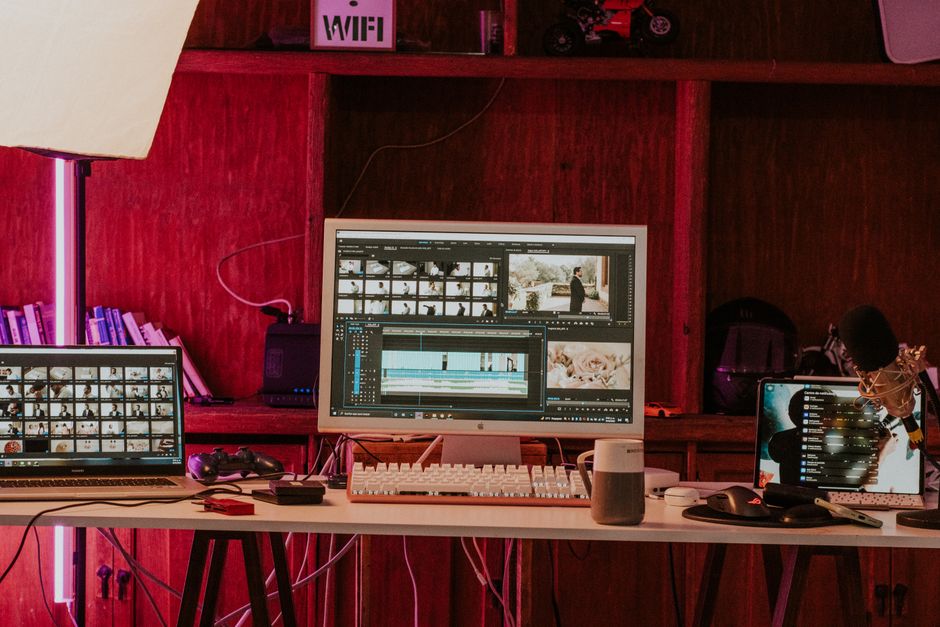
Ενεργοποιήστε αυτόματους υπότιτλους για να παράγετε αυτόματα ένα draft μεταγραφής, στη συνέχεια βελτιώστε ετικέτες ομιλητή και σενάρια για να τα αναγνωρίσετε καθαρά, πριν εξάγετε σε TikTok ή πλατφόρμες μακράς μορφής.
Η επεξεργασία υπότιτλων σε πρόγραμμα περιήγησης σας επιτρέπει να προσαρμόσετε τον συγχρονισμό, να ορίσετε ένα τολμηρό σχεδιασμό, χρώμα, και γραμματοσειρά για να ταιριάξει με το brand σας, και να διορθώσετε γρήγορα σφάλματα χωρίς να φύγετε από την εφαρμογή.
Οι μεταφράσεις ξεκλειδώνουν πολυγλωσσική εμβέλεια: μετά το speech-to-text, μπορείτε να προσθέσετε μεταφράσεις σε πολλαπλές γλώσσες, εξασφαλίζοντας ότι οι υπότιτλοι αντικατοπτρίζουν τοπικές φράσεις για στόχους αγορών.
Τα προεπιλεγμένα εξαγωγής επιταχύνουν την παράδοση: επιλέξτε προεπιλεγμένα ειδικά για πλατφόρμα (9:16 για TikTok, 16:9 για YouTube, τετράγωνο για Instagram) και αποφασίστε μεταξύ ενσωματωμένων υπότιτλων ή burned-in υπότιτλων· το περιεχόμενο μακράς μορφής κλιμακώνεται καλά όταν προσαρμόζετε μέγεθος κειμένου και αλλαγές γραμμής. Τα stock assets περιλαμβάνουν αδειοδοτημένα κλιπ και ήχο· οι όροι άδειας καλύπτουν εμπορική χρήση, οπότε μπορείτε να μονοπωλήσετε έργα.
Οι συνεργατικές ροές εργασιών βελτιώνουν την αποδοτικότητα: οι ομάδες μπορούν να διαχειρίζονται έργα, να μοιράζονται αρχεία, να αναθέτουν εργασίες, και να παρακολουθούν εργασία σε ροές, με σχόλια και ιστορικό εκδόσεων για να κρατήσουν όλους ευθυγραμμισμένους· οι έλεγχοι πρόσβασης απαιτούν σωστούς λογαριασμούς για να προστατεύσουν assets.
Για περιπτώσεις που απαιτούν επιπλέον ακρίβεια, συνδυάστε αυτόματους υπότιτλους Clipchamp με εξωτερική αναθεώρηση: το 3play μπορεί να χειριστεί proofreading και βελτιώσεις για μεταγραφές, εξασφαλίζοντας ότι οι μεταφράσεις παραμένουν πιστές· οι συστάσεις περιλαμβάνουν εκτέλεση γρήγορης διέλευσης σε δύσκολες ακολουθίες και ενημέρωσή τους στα σενάρια πριν την τελική εξαγωγή.
Η τεκμηρίωση παρέχει συμβουλές γρήγορης έναρξης και βέλτιστες πρακτικές: ελέγξτε τις κατευθυντήριες γραμμές σχεδιασμού, αντίθεση χρωμάτων, και μεγέθη γραμματοσειράς· χρησιμοποιήστε σημειώσεις χρήσης stock και λεπτομέρειες άδειας για να επιβεβαιώσετε δικαιώματα· αυτό σας βοηθά να κλιμακώσετε ροές εργασιών από σύντομα κλιπ σε σειρές μακράς μορφής.
Χειροκίνητες εναντίον αυτοματοποιημένων επιλογών: Πότε να εξωτερικεύσετε υπότιτλους
Χρησιμοποιήστε αυτοματοποιημένους υπότιτλους για ρουτίνα βίντεο, και εξωτερικεύστε μόνο για υψηλού κινδύνου κομμάτια. Αυτή η προσέγγιση επιταχύνει την στροφή για youtube και περιεχόμενο blog, διατηρεί έλεγχο κόστους, και διευκολύνει τη μετατροπή για τα περισσότερα κοινά. Ξεκινήστε με ένα αξιόπιστο εργαλείο, εκτελέστε after-check, και θα πιάσετε τα περισσότερα σφάλματα γρήγορα.
Εξωτερικεύστε όταν το περιεχόμενο βασίζεται σε εξειδικευμένους όρους, brands, ή χειρονομίες που απαιτούν λεπτομερή συγχρονισμό και κλιπάρισμα. Αυτά τα έργα επωφελούνται από εταιρείες που κατανοούν τη φωνή και την ορολογία τους, και μπορούν να τα παραδώσουν έτοιμα για δημοσίευση ως branded assets. Αυτός ο δρόμος διατηρεί την απαραίτητη ποιότητα υπό έλεγχο.
Η χειροκίνητη εργασία λάμπει για πολυγλωσσικούς υπότιτλους και κομμάτια ευαίσθητα στην προσβασιμότητα όταν η ακρίβεια έχει σημασία. Μια χειροκίνητη διέλευση μπορεί να παρέχει την απόχρωση που χάνουν τα αυτόματα εργαλεία, ειδικά γύρω από στίξη και συγχρονισμό. Όταν χρειάζεστε ταχύτητα χωρίς να θυσιάσετε ποιότητα, ένας ισχυρός πάροχος μπορεί να χειριστεί το φορτίο.
Συμβουλή ροής εργασιών: εκτελέστε μια αυτόματη διέλευση, στη συνέχεια έναν γύρο βαθμολόγησης μιας χρήσης για να διορθώσετε προφανή ζητήματα. Αν χρειάζεται, παραδώστε την εργασία σε αυτούς για να εξασφαλίσετε ότι ο συγχρονισμός ευθυγραμμίζεται με χειρονομίες και αλλαγές σκηνής σε macipad ή desktop, και επανεπιβεβαιώστε ότι το κλιπάρισμα είναι ακριβές.
Πού να επενδύσετε: η αυτοματοποίηση καλύπτει τα περισσότερα σε όγκο, αλλά εξειδικευμένες ομάδες κερδίζουν όταν το περιεχόμενο περιλαμβάνει όρους brand ή εξειδικευμένη ορολογία. Η προσέγγισή τους κάνει τους τελικούς υπότιτλους αξιόπιστους σε youtube, blog, και άλλα κανάλια, βοηθώντας σας να κρατήσετε τις αναθεωρήσεις σφιχτές και το περιεχόμενο προσβάσιμο.
Ready to leverage AI for your business?
Book a free strategy call — no strings attached.


