AIポッドキャストエディターをシンプルに - AIツールで編集を効率化
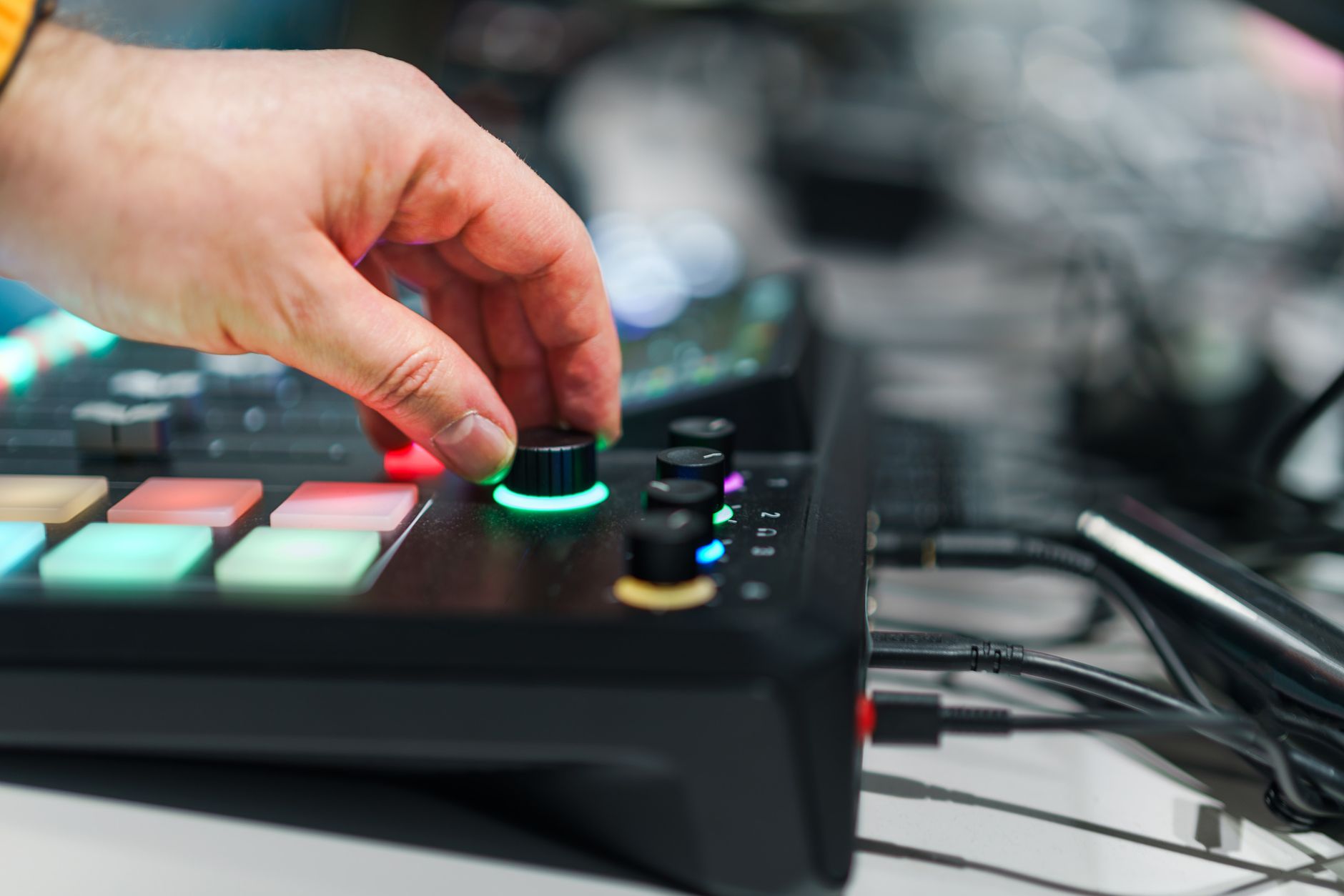
AI支援テンプレートとバッチ処理を有効にして、エピソードごとの編集時間を30-50%削減することから始めましょう。 プロジェクトをランウェイのように扱ってください:AIがクリップを事前編集し、ボーカル用のトラックをラベル付けし、数分で磨き上げられるクリーンなベースを提供します。追加の処理能力と使用済みプリセットを使用して一貫性を強化し、ミックスのバランスを保ち、沈黙を最小限に抑えるためにラウドネスを-16 LUFSに設定します。
AIにトランスクリプトから3-5つのタイトルとキャプションのオプションを生成させます。例えば、2つのキャプションスタイルと4つのタイトルバリエーションを作成し、エディターで最適なものを選びます。関連するクリップを別々のトラックに配置:ボーカルを1つのトラックに、音楽を別のトラックに、エフェクトを3番目のトラックに保って明確さを維持します。これにより、順序を交換したりクリップを削除したりしても作業をやり直す必要がなく、クリーンに保てます。将来的な編集のために要素のラベル付けについての簡単なメモを追加します (ラベル付けの慣習について)。
エクスポート時には、YouTube対応の配信物を使用:SRT形式の自動生成キャプション、5分ごとのチャプター、および最大3つのサムネイル/タイトルバリエーション。引用の不一致が発生した場合、引用元を確認して調整します。エディターはキャプション付きのアップロード準備完了パッケージと、YouTubeでのA/Bテスト用の魅力的なタイトルセットをエクスポートできます。また、読者に対して透明性を保つために引用のソースノートを添付します。
品質管理:AIが聞き間違いの単語、急な沈黙、またはトーンの不一致などの潜在的なミスをフラグ付けします。次に、数回のクリックで修正し、フローをクリーンに保てます。リズムを確認するために2つか3つのランダムなクリップをレビューし、レベルを調整し、トランジションが自然であることを確認します。このワークフローはチームを一致させ、行き来を減らすことで作業をサポートします。
チーム向けには、シンプルなワークフローを維持:自動テンプレート付きの1つのプロジェクトを使用し、共有フォルダにエクスポートし、サポートの場所をカバーする生きているガイドを保持します。問題が発生した場合、開発者のサポートサイトや、あなたの正確なセットアップの例を示す簡単なYouTubeビデオを参照します。ソース、追加アセット、およびサウンドの場所についてのメモは、行き来を減らすのに役立ちます。急な学習曲線なしで、最初の公開からクリーンなエピソードをより速く制作でき、ミスを減らせます。
AIポッドキャスト編集ガイド
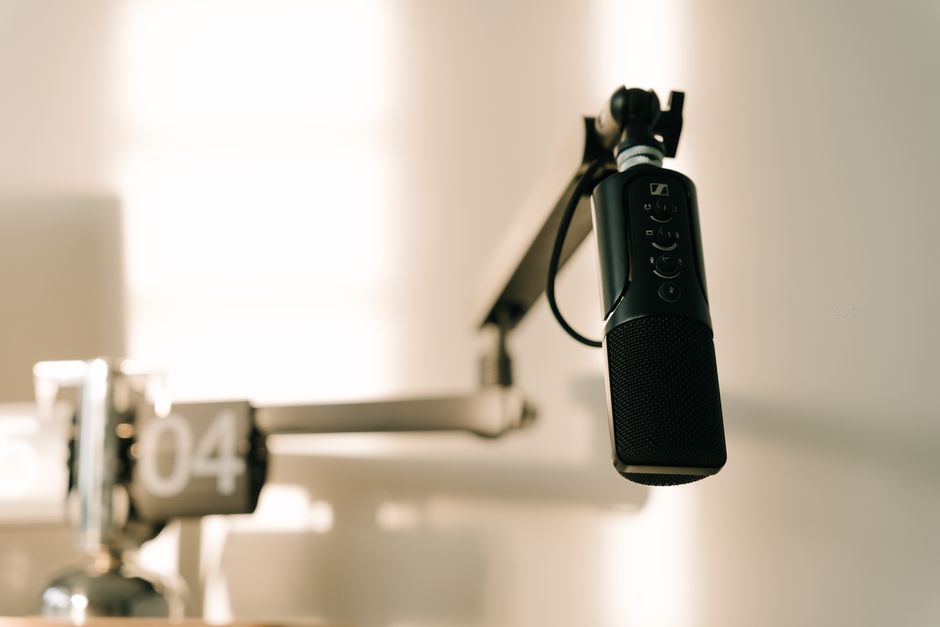
エピソードのテキストベースのアウトラインを作成し、任意のクリップを編集する前にスタイルを設定することから始めましょう。 このアプローチは、コアメッセージ、スピーカーの合図、および計画されたトランジションを含めるのに役立ちます。アウトラインを使用して、すべてのプラットフォームでの編集、キャプション、およびクリップ選択をガイドします。
トランスクリプトを編集計画に変換し、エディターで各スピーカーのクリップをタグ付け、キャプションをドラフトし、フィラーを削除します。クリーンなトランジションをブレインストームし、自然なペースと明確なコンセプトを保つ編集を適用します。このワークフローは、単一のツールに依存する場合に特に、行き来を減らし、公開を加速します。
ツールを使用してトランスクリプトを編集計画に変換:各スピーカーのクリップをタグ付け、キャプションをドラフトし、フィラー語を削除します。セグメントを接続する方法をブレインストームし、自然なペースと一貫したアイデアを保つ編集を適用します。このアプローチは、明確さを迅速に見つけ、磨かれたエピソードを配信するのに役立ちます。
テキスト-to-スピーチアライメントとキャプションを扱うツールを活用:テキストベースのワークフローは、キャプションの生成、セグメントのタイミング、ビデオへのエクスポートを容易にします。このパイプラインをエピソード全体で使用すると、リーチを拡張するためにショーノートとソーシャルアセットを含め、クリップ全体で一貫した編集を適用します。
LinkedInでハイライトを共有してオーディエンスを成長させ、エピソード、クリップ、エッセイ全体で一貫したスタイルを維持します。このクロスポスト戦略を使用して、プラットフォーム上の再利用セグメントを含め、エンゲージメントを促進します。
品質のヒント:キャプションの正確性を常に検証し、エラーを削除し、スピーカータグがトランスクリプトと一致することを確認します。effortlessly 調整可能なペースを使用して沈黙をトリミングし、編集を元のエピソードに対してテストして意味がそのまま保たれることを確認します。洗練する際は、将来の使用のためのバックアップクリップを数個キャプチャします。
最後に、将来のエピソードのためにテンプレートとチェックリストを再利用できます;幸いこれにより準備時間を減らし、エピソードとショー全体で一貫性を保てます。
クリアな話し言葉のためのノイズ低減テクニック
2ステップのクリーンアップから始めましょう:80 Hzの高域通過フィルターを適用して低域のランブルを除去し、次に静かな沈黙からノイズプリントをキャプチャしてブロードバンドのヒスを抑制するためのリムーバーパスを実行します。これにより、メディアコンテンツのボイスオーバーをクリアに保ち、エピソード内のストリートインタビューテイクの信頼できるベースラインを見つけられます。
ノイズ低減量をバランスさせます。最初のpassで12–24 dBを使用し、ヘッドフォンで聴いてください;過度な低減は金属的なアーティファクトを引き起こします。シビランスに対しては、デエッサー を追加するか、スペクトラルトリルを微妙に調整します。これにより、エピソードはボーカルと距離全体で知覚しやすさを維持します。穏やかな調整のみを保ちます。エディターはこのアプローチを役立つと見なし、多くの人が会話コンテンツに対して軽いタッチを好みます。
トレーニングのために、小さなファイルセットから専用のノイズプロファイルを構築します。10–20秒のルームトーンを参照として取り、プロファイルでリムーバーをトレーニングし、残りのコンテンツに適用します。場所が変わった後に再トレーニングが必要になる場合がありますが、これによりファイル全体でクリーンなオーディオのより一貫した生成が得られます。このベースラインから、より少ない編集とより良いリスナー体験で磨かれたエピソードを制作できます。
結果を比較するためのテーブルでこれらのオプションを使用:
| テクニック | 何をするか | 最適な使用 |
|---|---|---|
| 高域通過フィルター | カットオフ以下のランブルを除去 | ボイスオーバー、ストリートインタビュー;80 Hzから始め、ベースを薄くしないよう調整 |
| スペクトラルノイズ低減 (リムーバー) | ノイズプロファイルを消去してブロードバンドのヒスを対象 | 沈黙からノイズプリントをキャプチャした後に適用 |
| ノイズゲート | ポーズ内の非信号ノイズを抑制 | 沈黙にハムを含む場合;ノイズの上に閾値を設定 |
| デエッサー | 子音をクリアに保ちながら苛立たしいシビランスを低減 | 明るいシビラントのスピーチ;6–8 kHz付近で調整 |
| 手動編集 (クリップゲイン、フェード) | 自然なダイナミクスを保持し、ポップを除去 | 難しいテイクや残存クリックに使用 |
| ルームトーンマッチング | 沈黙をレベル化して編集をシームレスに保つ | テイク間のギャップを低レベルのルームトーンで埋める |
完了したら、最終コンテンツをメディア用にWAVとして、またはダウンロード用にMP3としてエクスポートします。Podbeanに公開する場合、無制限プランにサインアップし、簡単なダウンロードとチャプターハイライトを含むオファーを活用します。このワークフローは、リスナーが実際に楽しむクリーンなオーディオの生成を助けます。残存するヒスやポップをハイライトして、迅速なポスト編集を行います。
一貫したエピソードレベルための自動ラウドネス正規化
固定の統合ラウドネスターゲットを-16 LUFSに設定し、真のピーク天井を-1 dBTPにし、自動ラウドネス正規化を有効にして、すべてのクリップが同じレベルに着地するようにします。これにより、リスナーはエピソード全体で一貫したミックスを簡単にスムーズに聞け、最初のノートから最終の手がかりまでです。最新のプレミアレビューからのノートで始め、将来の編集のためのベースラインを調整します。
すべてのフッテージ、ビデオ、ボイスオーバー全体で単一の分析を実行し、1回のpassで正規化を適用します。ゲストセグメントとアンビエントトラックを含むエピソード全体をレベル化するためのバッチ処理を使用;これにより速度を節約し、最適な結果を望むエディターの疲労を減らします。AIエディターにサインアップした後、ビフォー/アフタービューを比較し、将来のセッションのトレーニングのためのノートをキャプチャして、一貫性のさらなる向上を推進できます。
一部のクリップはターゲットにもかかわらずドリフトします;最終正規化前に穏やかなリミッターまたはソフトクリップを適用してヘッドルームを保持し、パンピングを防ぎます。キーとなる瞬間の2–3 dBのダイナミックレンジを許容しつつ、ピークを-1 dBTP未満に保ち、ボイスオーバーとインタビュー全体で対話が自然でスムーズに保たれます。このテクニックは、プロフェッショナルによってエピソード全体の一貫性を保持するために使用されます。
再利用可能なプリセットで無制限のプロジェクトに編集ワークフローに正規化を統合します。ノートを使用して機能するものをキャプチャし、ゲストやチームと洞察を共有します。高速チェックのために、トラック全体でレベルキューを検索し、1回のpassでミックス全体をクリックして調整します。これにより、最適なテイクをプレミアの意図に一致させ、必要に応じてコントロールを取り、自信を持って編集できます。必要に応じて、特定のショー向けにプリセットを調整して将来のエピソードを加速します。
異なるフォーマット向けに正規化を適応させる方法をブレインストーム:ソロポッドキャスト、ラウンドテーブル、またはマルチゲストエピソードなど。ボイスオーバーを別々のトラックに配置し、オーディション代替案のためにキーセグメントをクローン;必要に応じてコントロールを取り、レベルをeffortlessly調整し、複数のデバイスでリスナーとテストします。一部の調整が必要になる場合がありますが、無制限のトレーニングデータで将来のエピソードのプロセスを加速します。
AIボイスの選択:ブランディングのための合成スピーチスタイル
ブランディングに一致する1つのAIボイスを選択し、この制作ワークフロー全体でそれを保持します。この一貫性は、オーディエンスがブログ投稿、beehiivニュースレター、またはオーディオエピソードでオープニングラインを聞くだけでトピックを認識するのに役立ちます。
ワークフロー
- ボイスの属性を定義:トーン、ペース、カデンス、および句読点の扱い方。ポッドキャスターと読者の両方のオーディエンスに適した単一のボイスを選択します。
- サンプルを生成:elevenlabsをベースラインとして使用し、無料トライアルや別のプラットフォームと比較してブランドの一致を確認します。
- トランスクリプションをアライメント:迅速なトランスクリプションパスを実行し、誤発音や用語名を修正して単語の正確性を保ちます。
- 沈黙を磨く:文とセクションブレーク間のポーズを締め、自然なリズムを長読みやエピソードで保ちます。
- 公開と測定:ブログ投稿とニュースレターの公開ワークフローにオーディオを織り込み、エンゲージメントを監視してボイス選択を時間とともに洗練します。
ボイススタイルと実用的選択
- 温かくフレンドリー:コミュニティ駆動のトピックとカジュアルなショーに適します。
- 簡潔で権威的:チュートリアル、クイックティップ、技術シーズンに適合します。
- エネルギッシュでダイナミック:短いセグメントやニューススタイルの更新でリスナーをエンゲージします。
- クリアで落ち着いた:トランスクリプション中心のコンテンツとロングフォームエピソードに理想的です。
評価とテスト
- 選択したボイスで単一のスクリプトを実行し、2番目のオプションと比較してブランディングの優先順位を確認します。
- ブランド用語、製品名、業界語の発音をチェックして、トランスクリプトでの奇妙なレンダリングを避けます。
- 速度を評価:0.95x–1.15xの自然な配信を目指し、アイデアを急がずにペースに適合するよう調整します。
- マルチスピーカーセットアップをテストするのはセグメント間でボイスを切り替える計画がある場合のみ;ほとんどのブランドでは単一のスピーカーが一貫性を保ちます。
配布と統合の実用的ヒント
- 公開フローの内部でブログ投稿とポッドキャストにオーディオを添付し、統一されたブランディングのためにbeehiivニュースレターにプッシュします。
- トランスクリプションの正確性を向上させるために、自然なスピーチを反映したシンプルなスクリプトを使用し、短い文と明確なキーワードを。
- トピックごとの小さなボイス調整セットと再利用可能なスクリプトテンプレートを保持して簡単なターンアラウンドを維持します。
- 単一のボイスを活用して制作時間を減らし、エピソードとキャンペーン全体のソニッククラッターを避けます。
品質チェックとメトリクス
- ポッドキャスターとブログ読者のサンプルオーディエンスで定期的なリスニングテストを実行して、トーンがブランドに一致することを確認します。
- オーディオ対応投稿とニュースレターのエンゲージメントを追跡;一貫したボイスを採用した後の保持率の改善をメモします。
- 沈黙と息が自然に感じられることを検証;フローを乱す長すぎるポーズを避けるよう調整します。
ツールとアクセスのノート
- Elevenlabsはベースラインボイスセットと初期実験のための無料ティアを提供;深い制作は通常、ボイスと機能を拡張する有料プランに依存します。
- 特別シリーズのための独特なサウンドが必要な場合に複数のオプションを探求しますが、ほとんどのエピソードでは単一のコアボイスを維持します。
- ライターとエディターがスタイルで一致するよう、選択したボイスを編集ノートにドキュメント化することを忘れずに。
実装チェックリスト
- チームによって承認された単一のブランドボイスを選択。
- ブログ、オーディオ、ニュースレターのためのスクリプトテンプレートを準備。
- オーディオ制作ステップと統合されたトランスクリプション ワークフロー。
- トピック全体で自然なペースのための沈黙を調整。
- beehiivニュースレターとブログ公開日と一致した公開スケジュール。
ポストプロダクション ワークフローへのAI編集の統合
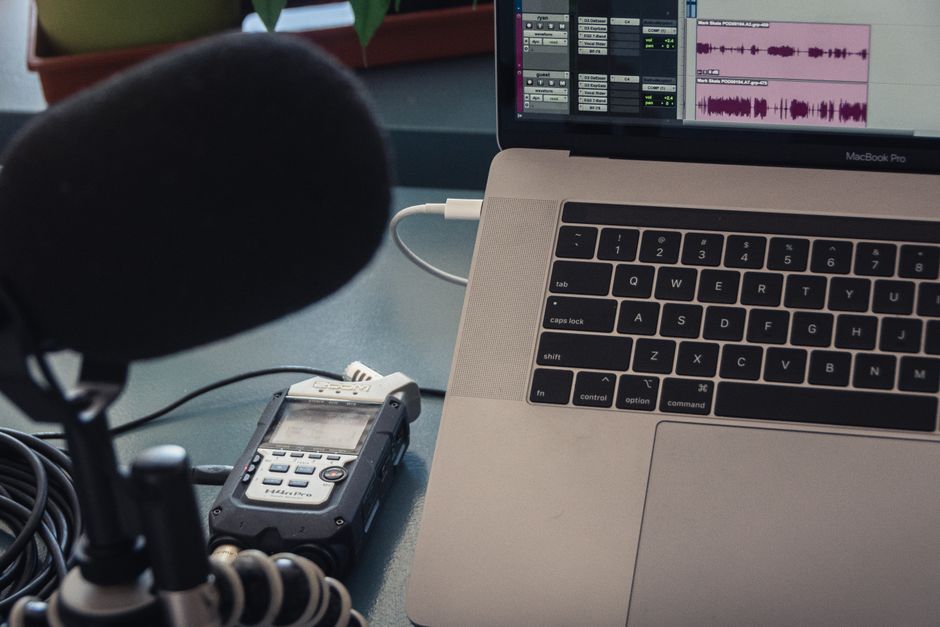
このアプローチを使用して、オーディオから正確なトランスクリプション、クリーンなノート、キーワード豊富なテキストベースのトランスクリプトを作成し、配布前にギャップと誤帰属をスクリーニングします。これらの慣行をすべてのエピソードに適用します。
ラフカット段階で生録音をワークフローにルーティングし、ツールにタイムコードをタグ付け、スピーカーを検出、ショーノートで再利用できるキーワードをハイライトさせ、手動編集で見逃された問題を迅速にフラグ付けします。
この自動化をブランドのハブに接続するためにサインアップし、会社とブランドが一貫性を保ち、エディターが再編集で傷つかないように;例えば、これはQAを効率化し、会社とそのショー全体で共通のボイスを保ちます。
アセットを一致させます:ソーシャル用のクリーンなキャプションをエクスポートし、これらのノートを使用して配布チャネル用のショー要約を埋めます。
ストリートインタビュークリップのレビューにalexを割り当て、特に背景ノイズがトランスクリプションの正確性を挑戦する場合に;これらのノートを使用して更新をガイドします。
AI出力をポストプロダクション ツールチェーンにマッピング:トランスクリプトをインポート、タイムスタンプ付きノートを添付、ブランドに一致したキーワードのライブラリを構築、ベンダーのサポートでエッジケースを扱います。このワークフローは、チームが高速決定を許可し、ほとんどのエピソードで一貫性を高めます。
品質チェックとクイックフィックス:沈黙、破裂音、アーティファクト
リアルタイム制作でスピーカー全体のペースを締め、スピーチフローを保持するために200 ms未満の沈黙を除去します。0.2 sおよびそれより短いギャップをフラグ付けする沈黙ファインダーを使用し、クリックを避けるためにスムーズなフェードアウトを適用します。除去後、一貫したラウドネスターゲットにトラックをイコライズし、ミックス全体で全体的なテクスチャーが一貫することを確保します。
破裂音には2ステップのアプローチが必要:攻撃的なバーストをトリムし、次に穏やかなEQを適用します。ランブルを低減するために60 Hz付近の高域通過フィルターから始め、プレゼンスを鈍くせずにウィンドポップを抑制するために150 Hz付近の広いノッチを追加します。単語にバーストが残る場合、地域を分離してピークをトリム;周囲の息とスピーチをそのままに保ち、自然な音を保持します。必要に応じて、2-4 kHz付近のダイナミックEQを使用してプレゼンスを保持しつつポップを再導入しないようにします。
アーティファクト:クリック、クラックル、口ノイズを特定;スペクトラルリペアまたは手動クリップとフェードを使用して除去;ルームトーンを残して自然なルームサウンドを保持;アーティファクトが再配置されないことをチェック;高速勝利のために、急な開始を避けるために1サンプルの小さなフェードを適用。ノイズプリントを除去し、アンビエンスを復元。
ワークフローとクイックフィックス:沈黙とクリッピングをキャッチするためにリラックスした閾値でリアルタイムの短いQCを実行;スピーカー全体で一貫した制作を維持するためにラウドネス不一致をフラグ付け;チーム全体で一貫性を保つためのテキストベースチェックリストをアーカイブ;PodcastleまたはPodbean経由で公開し、問題が発生した場合にサポートを提供;ナラティブボイスのエッセイでは、これらのステップが明確さを保持します。
📚 AIツールとレビューに関する詳細
Ready to leverage AI for your business?
Book a free strategy call — no strings attached.