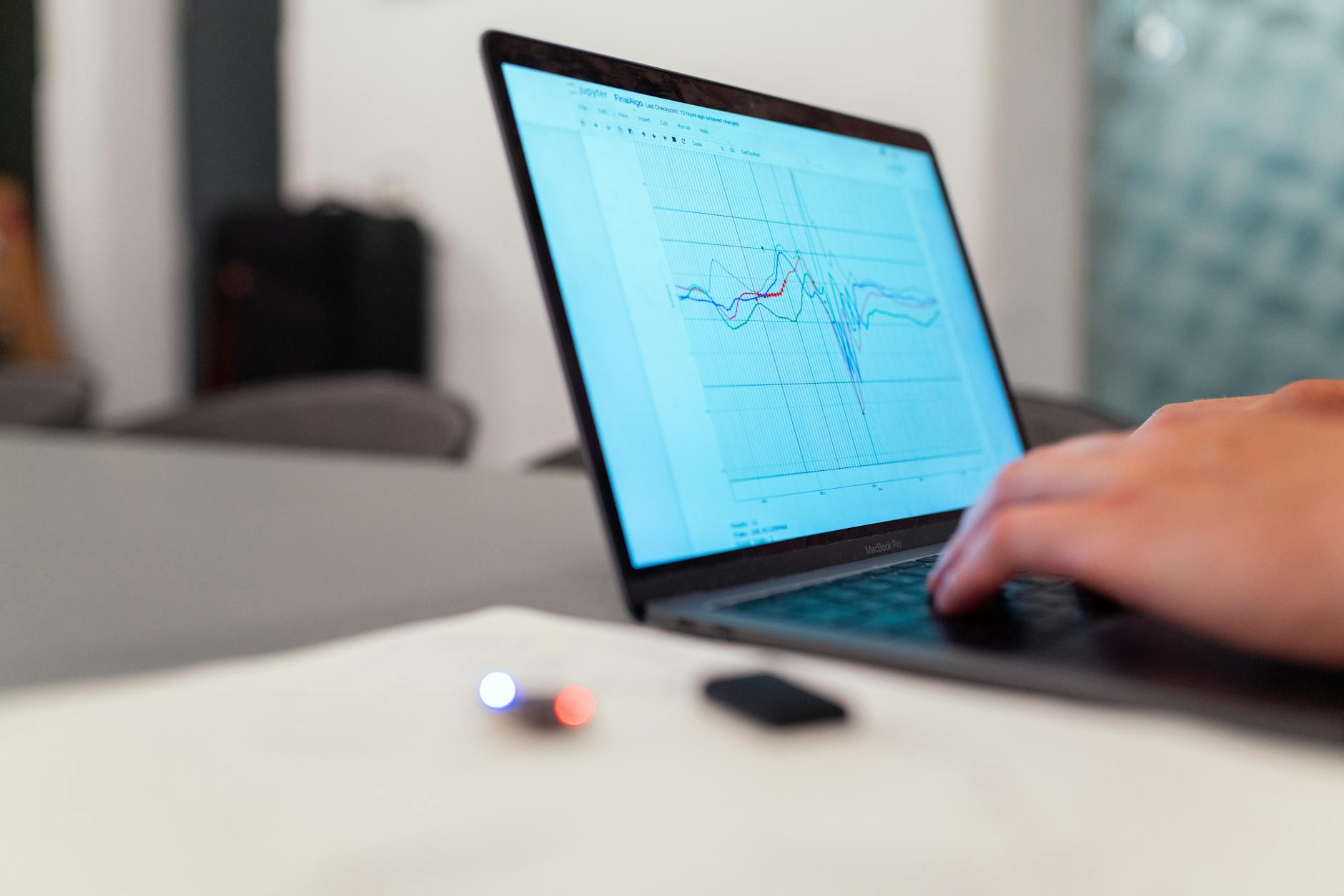
이미지 SEO 마스터하기 - 웹사이트 성능 향상을 위한 10가지 필수 팁

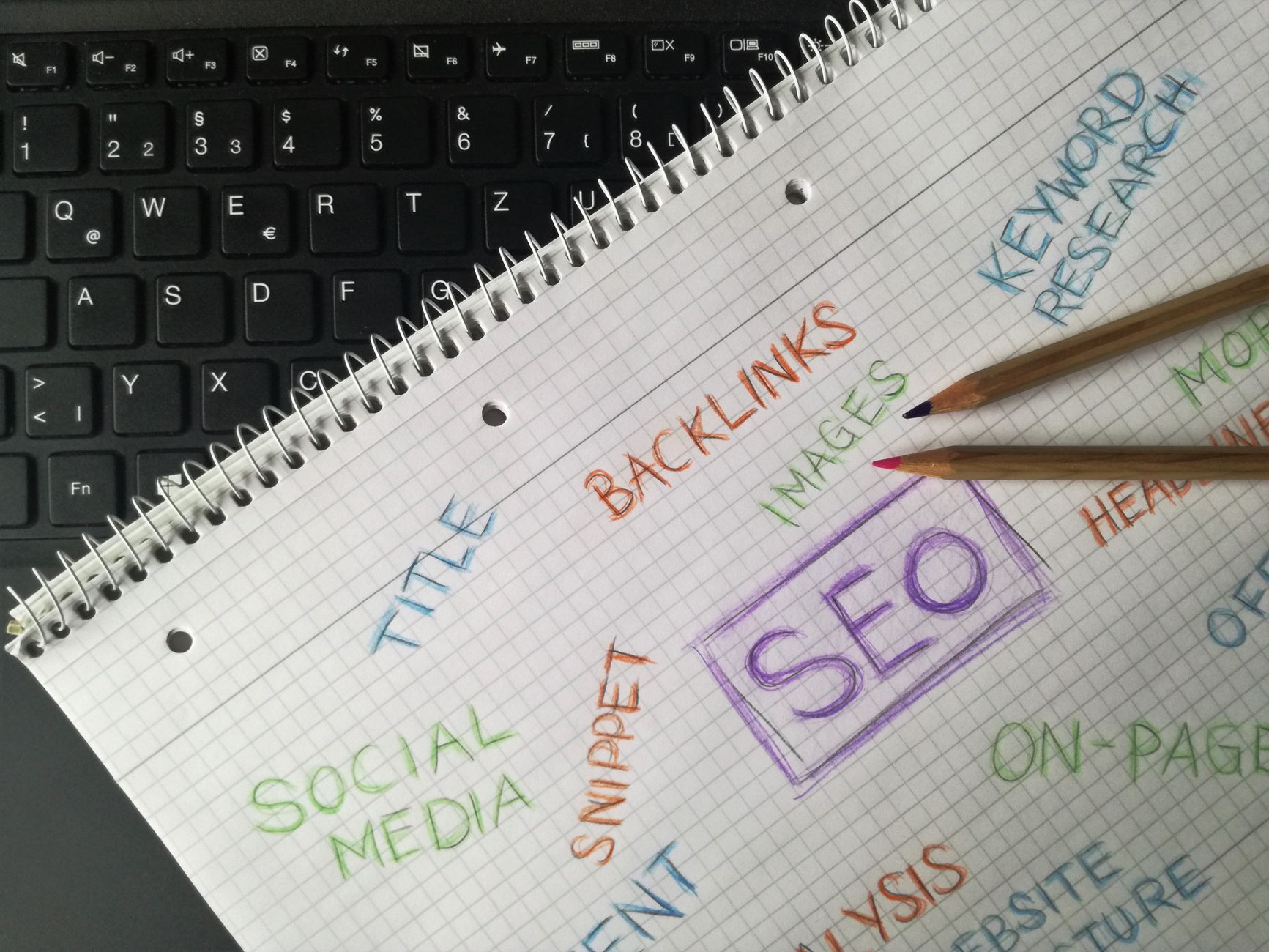
이미지 압축과 형식 선택으로 시작하세요: 오늘부터 이미지를 최적화하기 시작한다면, 지원되는 곳에서 큰 JPEG/PNG를 WebP 또는 AVIF로 변환하고, 표준 페이지의 평균 이미지 크기를 120–150 KB로 제한하세요. 이 조정은 페이지 무게를 줄이고 모바일에서 LCP를 0.5–1.5초 단축할 수 있습니다. 이 크기 지침을 작업 흐름의 시작부터 유지하세요.
페이지 콘텐츠를 반영하는 키워드가 포함된 설명적인 파일 이름과 alt 텍스트를 사용하세요. image1 같은 일반 용어는 피하세요. 사용자가 검색할 단어를 사용하고 검색 엔진에 맥락을 제공하세요. 라이선스된 자산을 사용하고 필요한 곳에 저작권 정보를 명시하여 저작권을 존중하세요.
이미지 맥락과 전체 페이지를 이해하도록 검색 엔진을 돕기 위해 유용한 캡션과 구조화된 데이터를 제공하세요. 1–2문장으로 이미지를 요약하는 캡션을 추가하고, 구조화된 데이터(schema.org/ImageObject)를 첨부하여 저자, 라이선스, 치수, 그리고 플랫폼 간 호환성과 같은 기능을 노출하세요. 커스텀 크기 노트를 포함하고 웹페이지 로딩을 지정된 커스텀 크기 힌트로 조정하며, 단어와 구조화된 데이터를 통해 명확한 맥락을 제공하여 검색 엔진이 이미지를 더 신뢰성 있게 인덱싱할 수 있도록 하세요.
안정성을 개선하기 위해 반응형 이미지와 지연 로딩을 구현하세요. srcset과 sizes를 사용하여 기기 적합한 이미지를 제공하고, 폴드 아래 이미지에 브라우저 네이티브 지연 로딩(loading="lazy")을 활성화하세요. 이 접근 방식은 사용자 상호작용 전 불필요한 가져오기를 줄이고 검색 결과에서 순위를 높이는 데 도움이 됩니다.
진행 상황을 추적하기 위해 구체적인 팁과 도구로 측정하세요. 가장 많이 방문한 웹페이지에서 기준선을 설정하고 2–4주 후 비교하세요. 이미지 로드 시간, CLS, LCP를 모니터링하고, 시각 자료와 관련된 키워드 사용, 이름 및 단어를 조정하세요. 이 규율적인 관행은 이미지 SEO를 마스터하고 사이트 전체 사용자 경험을 향상시킵니다. 이 기사는 성능을 향상시키기 위한 10가지 필수 팁을 제시합니다.
이미지 SEO: 실용적인 계획
업로드 전에 이미지를 압축하는 것은 필수입니다: tinypng나 kraken 같은 무료 도구를 사용하여 파일을 축소한 후, 지원되는 곳에서 WebP로 변환하여 품질을 희생하지 않고 바이트를 줄이세요. 이 단일 단계는 페이지를 가속화하여 순위와 독자 및 방문자 경험을 개선합니다.
형식 및 크기 규율: 사진에는 JPEG, 그래픽에는 PNG를 선택하고 WebP 또는 AVIF를 기본으로 채택하세요. 일반 이미지에는 100–150 KB 미만, 히어로 자산에는 200 KB 미만을 목표로 하며 모바일 네트워크에서 테스트하여 빠른 로드와 최소 레이아웃 이동을 확인하세요. 작은 파일은 데이터 전송을 줄이고 렌더링을 더 빠르게 합니다.
이름, alt 텍스트 및 마크업: 콘텐츠와 키워드를 반영하는 설명적인 파일 이름을 사용하세요. 이미지의 맥락을 설명하고 관련 키워드를 포함하되 과도하게 채우지 않는 alt 텍스트를 사용하세요. 간단한 마크업을 추가하세요: 너비와 높이 속성, 그리고 가능한 경우 간결한 캡션. 이 조합은 검색에서 이미지를 찾는 데 도움이 되고 페이지 내 신호를 강화합니다.
스톡 대 커스텀 시각 자료: 스토리를 전달하기 위해 커스텀 시각 자료를 선호하지만, 적절한 라이선스로 스톡 이미지를 보완할 수 있습니다. 스톡에 오버레이나 캡션을 결합하여 브랜드 느낌을 유지하고 독자와 의미 있는 맥락을 유지하세요.
접근성과 코드 힌트: 캡션과 의미 있는 alt 속성을 포함하고, 맥락 콘텐츠를 위해 figure/figcaption을 고려하세요. 이미지 관련 코드를 깨끗하게 유지하세요: 단일 진실 출처를 참조하고, 주석에 근거를 문서화하며, 페이지 간 재사용을 쉽게 하여 사이트 전체 가독성과 성능을 개선하세요.
자동화 및 워크플로: CMS에 최적화를 통합하세요: 업로드 시 압축, WebP 변환, 전용 폴더에서 적절한 크기 자산 제공. 이미지를 업데이트할 때마다 크기와 alt 텍스트를 재검증하고, 레이아웃 이동을 줄이고 사용자 신호를 높이기 위해 일관된 치수 체계를 유지하세요.
모니터링 및 반복: 최적화된 이미지를 게시한 후 순위, 읽기, 방문자를 추적하세요. 분석을 사용하여 느린 시각 자료가 있는 페이지를 식별하고, 사용자 의도를 반영하도록 alt 텍스트를 다시 작성하며, 트래픽을 유도하는 키워드와 정렬되도록 마크업이나 파일 이름을 조정하세요. 이 세부 루프는 페이지와 사이트 전체 성능의 지속적인 개선을 촉진합니다.
인스턴스 계획: 인스턴스 기반 워크플로에서 이러한 단계를 적용하세요: tinypng나 kraken으로 모든 자산 압축; WebP로 변환; 설명적 용어와 키워드로 이름 지정; alt 텍스트와 마크업으로 풍부하게; 스톡과 커스텀 시각 자료 결합; 4–6주 동안 순위와 방문자 영향 측정; 데이터에 기반한 세밀 조정으로 이득 유지.
마스터 이미지 SEO: 웹사이트 성능과 순위를 향상시키기 위한 10가지 팁
업로드 전에 이미지 파일 이름을 변경하세요; IMG_1234.jpg 대신 dining-table-in-kitchen.jpg 같은 설명적이고 콘텐츠 지향적인 이름을 사용하세요. 이 접근 방식은 인덱싱을 개선하고 표시되는 내용에 대한 맥락을 설정합니다. 파일 이름을 화면 판독기용 장면을 설명하는 간결하고 접근 가능한 alt 텍스트와 결합하세요. 이미지가 로드되지 않을 때 설명이 표시됩니다.
tinypng와 다른 고급 도구로 이미지를 압축하세요; 대부분의 페이지에서 이미지당 100 KB 미만을 목표로 하세요. 품질을 유지하면서 바이트를 줄이는 자동 최적화 프로세스를 실행하세요. 샘플 페이지에서 로딩 시간을 측정하고 시각적 영향이 깨끗하게 유지되는지 확인하세요.
가능한 곳에서 WebP 또는 AVIF를 제공하고 JPG/PNG 대안을 신뢰할 수 있는 폴백으로 제공하세요; 이는 모든 기기에서 우수한 압축과 빠른 렌더링을 제공합니다.
파일 유형이 아닌 콘텐츠와 목적을 설명하는 alt 텍스트를 작성하세요. 간결하게 유지(대략 5–12단어)하고 관련 키워드를 포함하되 과도하게 채우지 마세요; 이는 접근 가능한 검색 결과를 개선합니다.
srcset과 sizes를 구현하여 브라우저가 기기와 표시 영역에 맞는 이미지를 선택하도록 하세요; 지연 로딩과 결합하여 화면 밖 이미지를 지연시켜 초기 로드를 줄이세요.
이미지가 로드되는 동안 레이아웃을 안정적으로 유지하기 위해 너비와 높이를 선언하거나 aspect-ratio를 사용하세요; 페이지 렌더링 중 사용자 속도를 늦추는 표시 레이아웃 이동을 최소화하세요.
사이트맵에 이미지 URL을 추가하고 웹사이트 페이지에 이미지 인덱싱을 활성화하세요; 이는 검색 엔진이 자산을 발견하고 콘텐츠와 연관짓는 데 도움이 됩니다. 요크 기반 팀은 이미지를 기사와 제품에 매핑할 때 더 빠른 인덱싱을 경험합니다.
CDN에서 이미지를 제공하고 장기 캐시 헤더를 활성화하여 가져오기 시간을 줄이세요; 변경되지 않은 자산을 세션 간 재사용할 수 있도록 cache-control max-age 설정을 목표로 하세요.
정기적으로 Lighthouse나 WebPageTest로 이미지 성능을 감사하세요; 로드 시간 같은 중요한 지표를 모니터링하고 페이지를 방문자에게 신속하게 유지하기 위해 전략을 조정하세요.
팀 전체에 이미지 최적화를 확장하기 위한 간단한 레시피를 수립하세요: 단계별 흐름 정의, 공유 템플릿 사용, 월간 감사, 변경 로그 유지. 이 레시피는 페이지와 웹사이트 전체에서 이미지를 일관되게 유지합니다.
설명적인 파일 이름과 alt 텍스트: 이미지를 이름 변경하고 의미 있는 alt 속성을 작성하세요

페이지에서 주제와 역할을 설명하도록 모든 이미지 파일 이름을 변경한 후, 보조 기술과 검색 엔진을 위해 해당 설명을 반영하는 alt 텍스트를 작성하세요.
- 미디어 라이브러리 감사: 콘텐츠를 전달하는 이미지와 장식적 이미지를 분리하세요. 장식적 요소는 빈 alt 속성을 사용할 수 있고, 정보적 이미지는 설명적인 alt 텍스트를 받습니다. 이는 독자와 화면이 관련 시각 자료에 집중하도록 돕습니다.
- 이름 지정 규칙 채택: 소문자, 하이픈, 이미지 주제와 맥락을 드러내는 간결한 용어를 사용하세요. 3–6단어를 목표로 하고, 적합하다면 렌즈나 주제를 포함하며 image-001 같은 일반 이름을 피하세요. 예: lens-telephoto-400mm-product-shot.jpg, banner-storefront-hero.jpg, header-animation-decorative.png.
- 파일 목적에 맞는 alt 텍스트 작성: 정보적 이미지의 경우 콘텐츠와 게시물을 지원하는 방식을 설명하세요. 키워드를 과도하게 채우지 말고 주요 세부 사항(주제, 행동, 맥락)을 포함하세요. 장식적 이미지의 경우 alt를 비워두세요 (alt="").
- 페이지의 여러 이미지 처리: 각 alt 텍스트가 고유하게 이미지를 식별하도록 하여 독자가 반복적인 설명을 받지 않도록 하세요. 여러 이미지에서 단일 주제를 사용할 경우 alt 텍스트에서 맥락을 다양화하세요 (예: “트라이포드에 장착된 렌즈 사용 중,” “부스에서 전시된 렌즈”).
- 워크플로 도구 설치: 이름 지정 도구로 파일을 일괄 이름 변경하고, 게시물 편집 중 CMS에서 alt 속성을 업데이트하세요. 가독성을 희생하지 않고 파일 크기를 줄이는 압축기와 결합하여 온라인 배포를 가속화하고 모든 크기 화면에서 사용자 경험을 개선하세요.
- 형식 간 일관성 유지: PNG, JPEG, SVG 변형에 동일한 이름 규칙을 사용하세요. 이는 게시물과 페이지의 스니펫에 이미지를 매핑할 때 예측 가능한 결과를 제공하여 독자와 검색 엔진이 콘텐츠를 신뢰성 있게 해석하도록 돕습니다.
- 테스트 및 검증: 화면 판독기로 게시물을 읽으며 alt 텍스트가 정보적이고 중복되지 않음을 확인하세요. CMS 미리보기와 라이브 페이지에서 파일 이름과 alt 텍스트가 올바르게 표시되는지 확인한 후, 모바일 기기에서 페이지를 읽으며 접근성이 유지되는지 확인하세요.
예시:
- 파일: lens-telephoto-400mm-product-shot.jpg – Alt: "흰색 표면에 장착된 텔레포토 렌즈, 400mm 초점 거리 표시"
- 파일: banner-storefront-hero.jpg – Alt: "계절 세일 발표를 특징으로 하는 밝은 상점 전면 히어로 배너"
- 파일: decorative-divider.png – Alt: ""
- 파일: product-image-dslr-camera.jpg – Alt: "렌즈가 부착된 DSLR 카메라와 제품 세부 사항 강조"
이러한 관행은 파일 혼란을 줄이고 읽기 경험을 개선하며 순위에 더 명확한 신호를 제공합니다. 바쁜 게시물에서 잘 만들어진 이름 지정과 설명적인 alt 텍스트는 여러 독자를 지원하여 콘텐츠가 접근 가능하게 유지되면서 스니펫과 게시물 자산이 온라인에서 더 잘 수행되도록 합니다. 대규모 이미지 세트를 유지한다면 중앙 집중식 이름 규칙과 빠른 alt 템플릿이 업데이트 설치나 새 게시물 게시 시 시간을 절약하고 모든 파일을 적절히 라벨링할 수 있습니다.
최적화된 형식 제공: WebP/AVIF로 변환하고 품질 설정
기존 모든 래스터 이미지를 WebP 또는 AVIF로 변환하는 것으로 시작하고 형식당 특정 품질 목표를 적용하여 대역폭을 줄이면서 모든 기기에서 외관과 풍부한 시각 품질을 유지하세요.
- 역할별 이미지 감사: 로고와 아이콘(작은 크기), 썸네일, 히어로 샷, 갤러리 이미지. 각를 고정 표시 크기에 매핑하고 레이아웃 이동과 렌즈 왜곡을 줄이기 위해 맞춤 자산을 생성하세요.
- 사용별 형식 선택: 대부분의 자산에 WebP; 고세부 사진과 히어로 이미지에 AVIF; 지원되지 않는 브라우저를 위해 JPEG/PNG 폴백을 제공하여 기존 독자에 대한 커버리지와 연속성을 보장하세요.
- 품질 목표 정의: WebP 손실 약 75-85; AVIF 약 40-50; 벡터 유사 자산(로고)에만 무손실 옵션 유지. 시각 충실도와 저장 절감을 위한 세밀한 균형을 유지하세요.
- 원본 사전 최적화: tinypng나 유사 도구로 PNG 실행 후 변환; 이는 압축을 개선하고 저장 비용을 줄이면서 신원과 외관에 영향을 주지 않습니다.
- 이름 지정 및 저장: 크기와 형식 접미사와 함께 설명적이고 안정적인 파일 이름을 사용하세요 (예: image-hero-1200w.webp, icon-search-32.webp). 파일 이름은 캐싱, 맥락, 미래 업데이트에 도움이 됩니다.
- 전달 설정: 소스 요소나 서버 협상을 통해 형식 제공; WebP/AVIF를 지원하지 않는 브라우저 지원을 보장하고 적절한 형식 스트리밍으로 대역폭을 제한하세요.
- 반응형 전달: 일부 기기가 작은 변형을 로드하도록 srcset과 sizes 구현; 느린 연결에서 대역폭을 낮추고 모바일 순위 신호를 개선합니다.
- 접근성과 텍스트: alt 텍스트를 간결하고 키워드 관련으로 유지; 페이지 맥락과 신원과 정렬; SEO 트릭으로 파일 이름에 키워드를 과도하게 채우지 말고 사용자 읽기 경험을 우선하세요.
- 성능 확인: Google PageSpeed Insights, Lighthouse, Yoast 지침을 사용하여 텍스트 렌더링, 로드 속도, CLS 개선을 확인하세요; 이미지 로드 시간의 주목할 만한 감소를 목표로 하세요.
- 캐싱 및 저장 전략: 최적화된 자산에 장기 캐싱 활성화; CDN과 적절한 캐시 헤더를 구성하여 기존 페이지의 반복 가져오기 비용을 줄이세요.
- 구현 노트: 전체 롤아웃 전에 품질과 속도를 비교하기 위해 작은 테스트 페이지 세트를 생성하세요; 이미지 유형과 사용자 기기당 사용자 정의 품질 요소를 조정하여 영향을 최대화하세요.
모든 브레이크포인트에 대해 srcset과 sizes로 반응형 이미지를 구현하세요
각 이미지에 다중 후보 srcset을 추가하고 레이아웃을 반영하는 sizes 규칙을 사용하세요. 320w, 640w, 980w, 1600w 후보와 (max-width: 600px) 100vw, (max-width: 1024px) 50vw, 900px 같은 맥락 sizes 목록을 사용하세요. 이는 브라우저가 추가 다운로드 없이 적절한 자산을 선택하도록 합니다. 크롤러가 인덱싱을 돕고 404를 피하기 위해 안정적인 URL과 일관된 파일 이름의 호스팅 자산을 선호하세요. 전자상거래 페이지의 경우 썸네일, 제품 카드, 확대 보기용 4–5 너비를 제공하고 페이지 간 동일 후보 재사용으로 캐싱 누락을 줄이세요. 결과는 더 빠른 첫 페인트와 고DPI 화면에서 더 선명한 이미지입니다. 소셜 공유를 위해 작은, 중간, 큰 옵션을 포함하여 트위터 카드와 다른 미리보기가 선명하게 보이도록 하세요. 이 접근 방식은 다양한 화면과 레이아웃에 확장되며, 작가는 powell 테스트와 분석을 관찰한 후 브레이크포인트를 조정할 수 있습니다.
구현 팁: 히어로 블록, 제품 그리드, 기사 썸네일에 srcset 적용. sizes="(max-width: 420px) 100vw, (max-width: 800px) 50vw, 420px" 사용하고 지원 시 webp나 avif 파일 형식 제공, 오래된 크롤러를 위해 jpeg나 png 폴백. URL을 간결하게 유지하고 CDN이나 빠른 호스트에 호스팅하여 리디렉션을 피하세요. 또한 스크롤 시 작업을 오프로드하기 위해 loading="lazy" 추가, 적절한 곳에서 헤드의 link rel로 중요한 이미지 preload. 이러한 단계를 추가하면 대부분의 방문자가 특히 모바일 네트워크에서 적절한 이미지를 빠르게 가져올 수 있습니다. 이미지를 업그레이드할 때 템플릿 간 동일 너비 재사용으로 일관성을 유지하고 시간이 지남에 따라 결과를 개선하세요.
| 맥락 | 뷰포트 범위 | 너비 (w) | 샘플 srcset |
|---|---|---|---|
| 히어로 배너 | ≤ 600px | 640w, 1280w, 1920w | hero-640.jpg 640w, hero-1280.jpg 1280w, hero-1920.jpg 1920w |
| 제품 썸네일 | ≤ 1024px | 240w, 480w, 800w | thumb-240.jpg 240w, thumb-480.jpg 480w, thumb-800.jpg 800w |
| 블로그 헤더 | 데스크톱 | 320w, 640w, 1200w | header-320.jpg 320w, header-640.jpg 640w, header-1200.jpg 1200w |
페이지 속도를 높이기 위해 지연 로딩 활성화 및 화면 밖 이미지를 지연하세요
지금 네이티브 지연 로딩을 활성화하세요: 모든 화면 밖 이미지 참조에 loading="lazy"를 추가하고 폴드 아래 시각 자료가 필요할 때만 로드되도록 가벼운 플레이스홀더를 사용하세요. 이 제안은 최적화된 성능을 추구하는 사이트에서 인기 있으며 페이지 상호작용을 부드럽게 유지하는 데 도움이 됩니다.
loadinglazy 플래그는 템플릿과 구성 요소 전반에 활성화를 단순화합니다.
사용자가 스크롤할 때 로드되며, 시작되면 초기 렌더링 시간을 빠르게 줄이고 첫 페인트를 더 신속하게 느껴지게 합니다. 화면 밖 이미지를 지연시키는 것은 네트워크 요청을 줄이고 폴드 위 중요한 자산에 대역폭을 자유롭게 하여 인지된 성능을 개선합니다. 실제로 이 접근 방식은 이미지 수에 따라 초기 페이지 무게를 20-40% 줄일 수 있습니다.
구현을 위해 화면에 이미지가 들어올 때 플레이스홀더를 실제 소스로 교체하는 IntersectionObserver에 의존하세요. 지원되지 않는 브라우저의 경우 폴드 위 콘텐츠를 우선하는 가벼운 폴백을 제공하세요. 지연 로딩이 무엇을 포함하는지 이해하여 팀이 부드러운 마이그레이션을 계획할 수 있도록 하고, 접근성과 맥락을 위해 각 이미지에 설명적 alt 텍스트와 설명을 첨부하세요.
srcset과 sizes를 사용하여 최적화된 크기를 제공하여 데스크톱을 포함한 큰 화면이 더 높은 품질 이미지를 받고 작은 화면이 더 가벼운 자산을 받도록 하세요. 브라우저가 자동으로 적절한 것을 선택하도록 여러 버전을 유지하세요; 이는 낭비를 줄이고 화면 전반에 로딩 시간을 안정적으로 유지합니다.
아래는 오늘 적용할 수 있는 간결한 가이드입니다: 모든 자산에 지연 로딩 활성화, 강력한 폴백 구현, 결과 그래프로 테스트. 이미지 중심 페이지에서 총 페이지 무게 감소와 더 빠른 상호작용을 기대하세요.
측정 결과 지연 로딩 유무에 따라 두 페이지 버전을 비교하면 데스크톱과 다른 화면에서 더 높은 점수를 얻습니다. 이 접근 방식은 설명적 정보를 보존하고 필요할 때만 시각 자료를 전달하여 사용자에게 더 빠르고 매력적인 경험을 제공하며 참여를 촉진합니다.
XML 이미지 사이트맵으로 이미지를 인덱싱하고 검색 엔진에 제출하세요

가시성을 높이고 크롤 시간 줄이기 위해 오늘 Google, Bing, 다른 검색 엔진에 XML 이미지 사이트맵을 생성하고 제출하세요. 사이트맵을 /sitemaps/image-sitemap.xml 같은 명확한 경로에 배치하고 표시되는 페이지 URL을 통해 각 이미지를 참조하세요.
구조가 핵심입니다: 각 URL에 대해 image:loc, image:caption, image:title이 포함된 하나 이상의 image:image 블록을 포함하세요. 이는 맥락을 추가하고 엔진 전반에 접근 가능하고 시각적 검색을 지원합니다. 절대 HTTPS URL을 사용하고 파일 이름을 설명적으로 유지하여 독자와 크롤러를 모두 돕습니다.
버전 및 변형 추가: 이미지의 여러 크기나 버전을 제공하는 경우 동일 URL 아래 각 버전당 별도 image:block를 포함하세요. 이는 적절한 파일 전달 시간을 줄이고 다른 화면을 가진 기기에서 사용자 경험을 개선합니다.
제출 워크플로: Google Search Console에서 Sitemaps 열기, Add/Test 클릭, 이미지 사이트맵 URL 제출. Bing Webmaster Tools와 Yandex에서도 동일하게 하세요. 많은 이미지를 관리하는 경우 개별 이미지 사이트맵을 나열하는 사이트맵 인덱스를 유지하여 다른 엔진이 신뢰성 있게 찾을 수 있도록 하세요.
메타데이터 및 접근성: 명확한 용어로 파일 이름을 지정하고 image:caption과 image:title에 해당 용어를 반영하세요. 페이지에 alt 텍스트와 인근 캡션을 포함하세요; 이는 접근 가능한 시각 맥락을 지원하고 가시성과 백링크를 증가시킬 수 있습니다. 게시물 뒤의 작가, 예를 들어 저자 노트는 특히 콘텐츠가 케이프 지역 같은 지역 특정 주제를 대상으로 할 때 독자와 크롤러가 의존하는 신뢰성을 추가합니다.
품질 신호 및 노트: 이미지 URL이 robots.txt로 차단되지 않고 도달 가능하도록 하고, 캡션을 페이지 콘텐츠와 일관되게 유지하며 적절한 곳(예: 캡션의 Jacobson 스타일 노트)에 출처를 크레딧하세요. 이 접근 방식은 신뢰를 강화하고 독자가 작가를 기억하도록 하며 순위에 영향을 미치는 다른 신호를 지원합니다.
유지보수 및 지표: 이미지를 최신으로 유지하고 깨진 URL을 정리하며 새 시각 자료를 추가할 때 사이트맵을 새로 고치세요. 사이트맵은 크기 제한(압축 해제 시 50MB 미만, 파일당 50,000 이미지 항목 미만)을 유지하세요; 초과 시 사이트맵 인덱스로 분할. 이 관행은 시간이 지남에 따라 가시성 성장을 지원하고 이미지 중심 페이지의 이탈을 줄이면서 유기적 도달을 증가시킵니다.
📚 SEO & 디지털 마케팅에 대한 더 많은 내용
Ready to leverage AI for your business?
Book a free strategy call — no strings attached.