O que Faz um Bom Infográfico - Elementos Chave Explicados

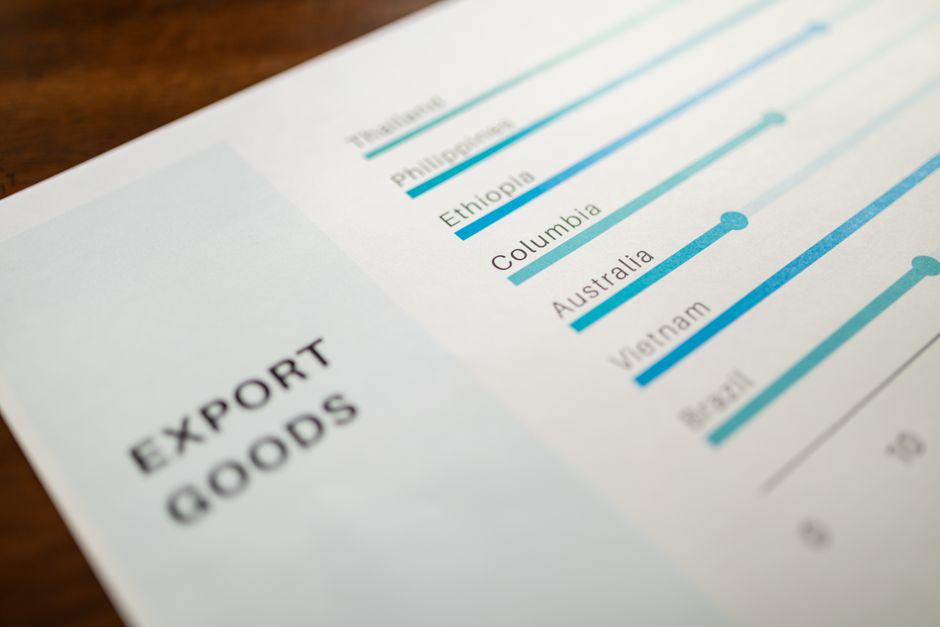
Comece com um objetivo claro: explique os dados com uma única visualização que transmite a mensagem principal de relance. Escolha helvetica para o texto principal, defina duas a três opções de cores e construa o layout com uma narrativa simples que mantém os leitores focados enquanto rolam.
três fatores definem um infográfico forte: clareza da ideia central, composição equilibrada e uma ordem de leitura natural que guia o olhar. Construa um título que sinalize o propósito e adicione um pequeno sinal para esclarecer o contexto; legendas do tamanho de um bolso apoiam as visuais sem bagunça. Mantenha espaçamento generoso ao redor das seções para que o leitor possa reagir rapidamente e não se sinta sobrecarregado; essa estrutura produz resultados facilmente compreendidos e também convida outros a responderem com suas interpretações. Essa abordagem cria um fluxo de leitura confiante.
As escolhas de tipografia e espaçamento reforçam a legibilidade. Favoreça uma única família de fontes (helvetica) e um pequeno conjunto de opções para títulos e texto principal. Visite um ritmo equilibrado: linhas curtas, margens consistentes e espaçamento de linha generoso para que os leitores digiram a mensagem facilmente. Pequenos detalhes – como uma grade consistente e sinalizações claras – ajudam os leitores a escanearem páginas longas, incluindo blogs.
Cores, ícones e visuais de dados devem apoiar a história, não dominá-la. Use contrastes de cores naturais, rótulos concisos e anotações econômicas. Ao apresentar números, converta-os em visuais (barras, ícones ou mapas) que mostrem resultados de relance. Se você referenciar fontes, uma nota breve ou um link para wikipedia pode satisfazer a curiosidade sem interromper o fluxo. Essa abordagem ajuda você a garantir acessibilidade para leitores casuais e especialistas.
Finalmente, teste e refine. Crie um esboço conciso, depois expanda com alguns ajustes visuais. Verifique se a mensagem principal está clara após uma resposta rápida de um colega; meça o sucesso pela facilidade com que os leitores captam o ponto principal e quanto tempo eles permanecem engajados enquanto rolam pela página. Ao publicar, inclua notas para outros e mantenha o layout responsivo para diferentes telas, dispositivos e blogs ou páginas de destino.
Guia de Estratégia para Infográficos
Comece com um propósito claro e três mensagens principais, depois mapeie o conteúdo para elas para que cada elemento sirva a um ponto de partida específico. Mantenha uma lista de verificação manual para verificar o alinhamento em cada etapa.
Ao escolher visuais de dados, separe informações principais de detalhes decorativos; cite fontes confiáveis e mantenha os números precisos.
Ao incorporar tipografia, limite a duas fontes que equilibrem legibilidade e personalidade; atribua uma para títulos e outra para o texto principal.
Desenhe para impacto: use cor, hierarquia e espaçamento para guiar o olhar e garantir que a mensagem se conecte em diferentes dispositivos. Se você quiser alcançar leitores não especialistas, mantenha as explicações concisas.
A escolha de uma estratégia de layout importa: essa escolha entre um fluxo linear ou uma estrutura de três painéis pode evoluir à medida que o conteúdo é refinado.
Teste cedo com um pequeno público; colete feedback sobre clareza e impacto, depois ajuste o layout e a redação.
Audit visuais para evitar tendências desatualizadas e manter o design fresco; atualize paletas de cores e estilos de gráficos a cada seis a doze meses.
Deixe espaço para acessibilidade: use cores de alto contraste, texto alt descritivo e gráficos simples que qualquer um possa ler.
Esclareça a Mensagem Central em 3 Passos

Rascunhe uma frase nítida que declare sua mensagem central. Ela deve ser uma única proposição precisa que ajude seu público a saber o ponto de partida. Mantenha-a curta e teste-a com colegas ou contra resumos da wikipedia para avaliar neutralidade e clareza. A linha vem logo antes das decisões de design, guiando cada escolha visual.
Passo 2: Alinhe visuais com a mensagem. Remova elementos que distraem da frase central. Mostre dados e passos que ilustrem a progressão em direção ao objetivo declarado. Use modelos ou modelos personalizáveis de visme ou guias inspirados em duckdesign para acelerar o processo. Mantenha um layout amplo e escolha um par legível como nunito com helvetica para equilibrar personalidade e legibilidade. A mente por trás do design permanece focada no público e no objetivo; cada gráfico apoia a mensagem e cada cor incentiva a compreensão. Os dados apresentados devem reforçar em vez de sobrecarregar.
Passo 3: Valide e refine. Mostre o trabalho a um público de teste – amadores e designers – e colete feedback específico sobre se a mensagem central é compreendida, não apenas como parece. Anote erros a evitar e marque interpretações erradas para que você possa corrigi-las rapidamente. Use uma lista de verificação rápida: a mensagem é apresentada claramente? Os visuais apoiam a alegação central? Itere com públicos amplos e estreitos; manter a mente focada nos objetivos do usuário evita desvios. Canalize a mentalidade shifu: escolhas concisas, edições deliberadas. Esse hábito mantém você focado em ajudar um público mais amplo.
Desenhe para Escaneabilidade: Hierarquia, Tipografia e Espaçamento

Comece com uma hierarquia forte que guia efetivamente o olhar: título, subtítulo e blocos de dados devem fluir nessa ordem. Texto principal em 14-16px com altura de linha de 1.45-1.6 mantém as linhas legíveis; vise 50-75 caracteres por linha para minimizar quebras. Construa espaço ao redor de gráficos e rótulos para que o olhar possa pousar sem aglomeração e reserve espaço vertical generoso para acomodar a navegação por polegar em dispositivos móveis.
A seleção de tipografia deve equilibrar legibilidade e elegância; use uma sans-serif limpa para o corpo e combine com um display inspirado em playfair para títulos para criar um contraste claro. Favoreça uma altura de linha estreita de 1.2-1.4 para títulos para preservar um bloco compacto e memorável enquanto mantém a legibilidade em painéis de dados densos. À medida que os dispositivos mudam, mantenha uma grade base confiável para preservar o alinhamento. Incorporar uma paleta de cores restrita mantém o foco no conteúdo.
Regras de espaçamento garantem escaneabilidade: margens e preenchimento em múltiplos de 8px; mantenha espaço entre blocos, legendas e chamadas para que cada elemento seja lido como uma unidade própria. Evite negligenciar o espaço em branco que atua como uma pausa visual, deixando diferenças entre seções se destacarem em vez de colidirem.
Combinações de peso, tamanho e cor devem reforçar a estrutura sem sobrecarregar o leitor. Use contrastes de cor abertos e diferenças de tamanho para marcar a hierarquia; rótulos de dados, legendas e notas de fonte devem ficar em linhas claramente separadas com seleção consistente de fontes e pesos para uma aparência coesa.
Layouts abertos e amigáveis ao usuário priorizam interação amigável ao polegar em telas pequenas: mantenha painéis numéricos alinhados em uma única coluna, controles alvo grandes o suficiente para toque e coloque as figuras mais importantes perto do topo. Incorporar espaço ao redor de gráficos e listas ajuda os leitores a escanearem sem fadiga; espaçamento amigável ao polegar e cabeçalhos em negrito tornam a navegação sem esforço.
Testes e iterações importam: execute escaneamentos rápidos com usuários reais, rastreie quão rápido as figuras principais são encontradas e ajuste comprimento de linha, espaçamento e escolhas de fonte até o resultado se sentir perfeito, claro, elegante, legível e memorável. A abordagem permanece aberta e flexível, adaptando-se a diferenças entre dispositivos enquanto mantém uma aparência consistente no infográfico.
Mostre Dados Claramente: Selecione Visuais e Escalas Precisas
Use visuais projetados para o tipo de dados e mantenha escalas precisas desde o início para captar atenção e prevenir leituras erradas. Um gráfico que se sustenta por si só apoia seus valores, para que sua narrativa seja lida claramente em vez de derivar para bagunça decorativa.
Transforme dados em uma narrativa direta com tipos visuais apropriados: gráficos de barras para categorias discretas; gráficos de linha para mudanças ao longo do tempo; gráficos de área para resultados cumulativos; tabelas para valores exatos quando a precisão importa. Foque na história que cada gráfico conta e como ela leva à ação.
Mantenha rótulos de eixo concisos e inclua unidades. Use incrementos consistentes em escalas para evitar interpretações erradas. Essa compatibilidade entre escala de eixo e dados melhora a legibilidade e a confiança.
Limite molduras decorativas que competem com seus valores; use uma paleta restrita que apoie contraste e legibilidade. O resultado é um gráfico que convida à ação em vez de distração.
Ao combinar gráficos, garanta compatibilidade: alinhe escalas, rotule cada eixo e note a unidade. Se duas medidas usarem baselines diferentes, chame a atenção na legenda e ofereça uma referência rápida para evitar confusão.
Arco narrativo: os visuais escolhidos devem guiar o espectador em direção aos resultados pretendidos. Uma sequência de elementos ajuda os leitores a seguirem os dados através da interpretação e dos próximos passos.
Passos do processo para implementar: colete dados, limpe-os, desenhe visuais, valide escalas, teste legibilidade com um público de amostra. Esse processo cria um fluxo de trabalho para o criador e produz um caminho de resultados mais suave.
Referências: cite fontes confiáveis; se você extrair figuras, wikipedia é um ponto de partida, mas verifique números com conjuntos de dados primários ou relatórios oficiais.
| Tipo Visual | Melhor Uso | Orientação de Escala | Notas |
|---|---|---|---|
| Gráfico de barras | Comparação entre categorias | Incrementos inteiros; máx. 20–25 barras antes de aglomeração | Mantenha cores suaves; use uma baseline compartilhada |
| Gráfico de linha | Tendências ao longo do tempo | Escalas de intervalo igual; rotule a cada 4–6 pontos | Evite empilhar linhas com grandes diferenças |
| Gráfico de área | Totais acumulados | Mesma baseline; destaque margens com cor | Cuidado com segmentos sobrepostos |
| Tabela | Valores exatos | Inclua unidades; limite decimais | Coloque perto do gráfico, não longe |
Alinhe Cores e Identidade Visual para Consistência
Escolha uma paleta de marca de 3 cores e verifique razões de contraste para manter a legibilidade acessível em qualquer plataforma.
Essa abordagem mantém sua história coerente e reduz a complexidade em gráficos, painéis e relatórios. Se você seguir essas regras, o resultado se sente sólido e organizado, ajudando os leitores ao longo da narrativa a permanecerem engajados. visme fornece uma maneira prática de gerenciar tokens e manter o processo totalmente controlado, evitando visuais chatos e garantindo identidade visual precisa.
-
Defina Paleta Central e Tokens
- Escolha uma cor primária, uma cor secundária e uma escala de cinza neutra (por exemplo, 3–5 amostras) que reflitam sua marca. As cores devem ser precisas e fáceis de aplicar em texto, visuais de dados, ícones e fundos.
- Nomeie papéis de cor claramente (primária, secundária, fundo, ênfase) no seu guia de estilo para que todos possam segui-los. Isso mantém a paleta organizada e totalmente documentada, reduzindo a complexidade.
-
Garanta Acessibilidade e Legibilidade
- Defina benchmarks de contraste: texto principal pelo menos 4.5:1 e texto grande pelo menos 3:1; verifique com ferramentas que simulam uso no mundo real.
- Evite pistas apenas de cor; combine cor com rótulos, padrões ou ícones para manter a informação acessível.
- Deixar significado crítico apenas para a cor cria risco; sempre forneça indicadores alternativos.
-
Aplique Consistente em Elementos
- Mapeie séries de dados para cores fixas em todos os gráficos e painéis para evitar confusão.
- Evite adicionar novas cores no meio do projeto; expandir a paleta aumenta a complexidade e pode parecer inconsistente.
- Use um fundo neutro e tipografia consistente para deixar os acentos de cor se destacarem sem sobrecarregar os leitores.
-
Construa uma História de Cor
- Deixe a cor dominante guiar a atenção para as percepções mais importantes, enquanto tons secundários apoiam o contexto.
- Pense como um shifu guiando aprendizes – disciplina, consistência e sinais claros produzem uma história de marca mais forte e reconhecível.
- Mantenha visuais envolventes equilibrando cor com espaço em branco, garantindo que a plataforma se sinta calma em vez de caótica.
-
Teste, Itere e Documente
- Gaste tempo validando com leitores reais; teste nas telas maiores e em uma gama de dispositivos para confirmar legibilidade e tom.
- Colete feedback, ajuste tokens e depois publique atualizações no guia de estilo para que você tenha uma referência viva.
- Essa verificação contínua previne erros chatos e garante que a paleta permaneça alinhada em conteúdo e plataformas.
Formate para Mídias Sociais: Tamanho, Tipo de Arquivo e Legendas
Use tamanhos específicos da plataforma para resultados claros: imagens de feed do Instagram em 1080x1080 (1:1) ou 1080x1350 (4:5) para cartões retrato; ativos de feed do Facebook e LinkedIn em 1200x630 (1.91:1) ou 1200x627; imagens do X/Twitter em 1200x675; TikTok e Reels em 1080x1920 (9:16); pins do Pinterest em 1000x1500 (2:3). Para entrega amigável a mobile, exporte o design central em cada tamanho alvo e crie cortes seguros para que a mensagem principal permaneça legível em frames menores.
Tipos de arquivo e otimização: JPEG funciona bem para fotos, PNG para gráficos com texto ou transparência e WEBP para reduzir o tamanho do arquivo sem perda visível de qualidade. Use MP4 ou MOV para vídeo. Nomeie arquivos claramente (por exemplo product-launch-1200x630.jpg) e adicione texto alt para apoiar acessibilidade. Visite manter imagens estáticas abaixo de 500KB e vídeos curtos abaixo de 8MB para garantir tempos de carregamento rápidos em redes móveis. Ao referenciar dados, inclua fontes para apoiar aprendizado e compreensão.
Legendas devem entregar valor imediatamente. Comece com um gancho na primeira linha, depois uma explicação concisa, depois um encerramento claro ou chamada para ação. Para Instagram, mantenha a primeira linha visível em 125–150 caracteres; X/Twitter suporta até 280 caracteres; postagens do LinkedIn performam bem com 600–800 caracteres enquanto permanecem legíveis. Use frases curtas e quebras de linha para criar uma linha de pensamento limpa que impulsione a compreensão. Referencie seu conceito e objetivos, adicione algumas fontes se necessário e garanta que cada postagem ofereça insights úteis para clientes. Use uma perspectiva que se sinta real e interessante, e evite tons longos e ásperos ou edições como cirurgias que retiram personalidade. Fomentar comunicação clara ajuda os leitores a se conectarem com sua mensagem em cada parte do seu feed. Inclua uma nota sobre resultados de aprendizado para que os leitores possam medir o progresso imediatamente. Adote práticas consistentes em formatos para apoiar aprendizado e garantir que seu conteúdo se alinhe com a voz da sua marca e expectativas do público.
Ready to leverage AI for your business?
Book a free strategy call — no strings attached.


