Twitter разрешил пользователям делиться твитами в Snapchat — кроссплатформенное обновление


Опубликуйте тестовый пост из основной ленты в визуальное приложение, чтобы расширить охват на разных платформах. В декабрьском развертывании появляется мост в один клик для этого процесса, позволяющий сравнивать показатели ленты в режиме реального времени и решать, что публиковать дальше.
Подготовьте ресурсы сейчас: доступное изображение, краткую подпись и несколько битмоджи или стикеров. Используйте обрезку и изменение размера, чтобы подогнать под вертикальный кадр (9:16), затем переместите элементы, чтобы удержать объект в центре. Это обеспечит согласованный вид, когда элемент попадет в ленту визуального приложения, и его действительно легко повторно использовать в разных форматах.
Создавайте сообщения, которые подходят для мобильных устройств: короткие, прямые и с четким призывом к действию. Затем публикуйте контент, который выглядит естественно, чтобы ваша аудитория могла потреблять его с минимальными препятствиями. Если вы хотите продвигать кампанию, объедините яркое изображение с парой стикеров и лаконичной подписью. Для единообразия применяйте одни и те же шаги каждый раз.
Техническое примечание: используйте наиболее распространенные типы файлов, придерживайтесь лимита на размер файла и убедитесь, что можете изменять размер без потери четкости. Если это невозможно, рассмотрите альтернативный ресурс или используйте вместо него версию большего размера. Это упрощает процесс и необходимо для быстрого развертывания.
Измерение и итерация: отслеживайте показы, нажатия, сохранения и охват из ленты в визуальное приложение. Развертывание следует отслеживать с помощью простой панели, уделяя особое внимание наиболее эффективным вариантам. Если результаты выглядят убедительно, продвигайте выигрышный формат для дополнительных кампаний. Процесс должен быть подходящим для команд и повторяемым в масштабе, с четкими шагами для выполнения.
Финальный совет: сохраняйте вид контента естественным, избегайте беспорядка и поддерживайте единообразный тон. Когда ресурсы подготовлены, вы можете быстро опубликовать первоначальную волну; затем опубликуйте последующую с небольшими изменениями, чтобы протестировать различные комбинации стикеров. Используйте битмоджи и стикеры стратегически, а не чрезмерно, чтобы обеспечить наиболее эффективный внешний вид в ленте. Этот подход упрощает и делает более эффективным продвижение в нескольких приложениях.
Включение и настройка для кроссплатформенного обмена
Рекомендация: нажмите кнопку в правом верхнем углу в редакторе, выберите интеграцию со сторонним приложением и предоставьте доступ, чтобы включить простой и прямой обмен твитами в сопутствующее приложение, не покидая текущей ленты. Это обеспечивает более тесный рабочий процесс и повышает вероятность вирусного распространения публикации, даже если связанные учетные записи сначала ограничены. Если эта функция все еще развертывается, проверьте меню на наличие подсказок о статусе или региональной доступности, пока развертывание не достигнет вашего региона.
Чтобы включить доступ, откройте меню в правом верхнем углу своего профиля, перейдите в раздел подключений сторонних приложений и авторизуйте интеграцию. Затем вы можете выбрать, какие учетные записи будут участвовать и следует ли автоматически делиться или утверждать каждый элемент; вы все равно можете просмотреть контент, прежде чем он появится в другом приложении. Хотя настройка аналогична на разных устройствах, некоторые поля могут отличаться в зависимости от сборки.
Шаг 1. Используйте кнопку для подключения сервиса и подтвердите разрешения, устанавливая мост для этого пути публикации.
Шаг 2. Выберите, какие учетные записи разрешены (это может быть личный или фирменный аккаунт); держите набор ограниченным, чтобы избежать беспорядка в ленте получателя.
Шаг 3. Протестируйте несколько твитов в своей текущей ленте; убедитесь в простоте просмотра в целевом приложении и убедитесь, что элемент виден членам команды, таким как Джордан, в рамках творческого рабочего процесса.
Как поделиться твитом из Twitter в Snapchat на iOS и Android
Начните с кнопки действия в публикации и выберите запись snapchats в меню; это пересылает медиа в приложение на основе камеры для быстрой публикации.
В iOS после выбора snapchats медиафайл открывается в собственном редакторе. При желании добавьте подпись, используя поле в левом нижнем углу, затем определите аудиторию: личную для нескольких учетных записей или общедоступную для вашего круга. Нажмите кнопку публикации, чтобы опубликовать.
В Android повторите: нажмите меню действий и выберите snapchats; редактор откроется с теми же медиафайлами. Добавьте текст, если нужно, и выберите Story или Direct в зависимости от аудитории; затем нажмите кнопку публикации.
требуется сотрудничество между автором и учетными записями для максимизации охвата; просмотрите подробности и советы для них в социальном потоке; такой контент snapchats может стать вирусным, поэтому рассмотрите возможность попросить подписчиков принять участие. меню в левом нижнем углу частная возможность; функциональность ваших нижних сообщений инструменты вирусная кнопка открыть.
Что появляется в Snapchat после того, как вы поделились твитом: предварительный просмотр, ссылка и опыт просмотра
Спланируйте публикацию, чтобы максимизировать доступ через чистый предварительный просмотр, видимую ссылку и удобный для зрителя опыт. Подумайте, как внешний вид может выглядеть для других, при этом нижняя левая обрезка должна быть сохранена, чтобы защитить основные визуальные элементы. Этот подход удобен и прост, и он может повысить вовлеченность в snapchats, на которые вы ориентируетесь, влияя на просмотр и способ передачи сообщений зрителям.
- Дизайн предварительного просмотра
- Выберите одно сильное изображение; обрежьте до квадрата (1:1) или по вертикали (4:5), чтобы основные визуальные элементы и любой текст оставались в безопасной области, хотя контент может быть обрезан, если не быть осторожным. Ищите макет, который выглядит чистым на разных размерах экрана.
- Сделайте подпись краткой, чтобы она хорошо выглядела даже при масштабировании; используйте простой язык, например четкий призыв к действию.
- Представление и доступ к ссылкам
- Убедитесь, что карточка ссылки отображается как интерактивный элемент; короткие URL-адреса улучшают загрузку и доступ, а также способствуют быстрым нажатиям со стороны других пользователей.
- Проверьте скорость перехода, чтобы перемещать зрителей на страницу с минимальными препятствиями, чтобы при нажатии создавалось ощущение непрерывности.
- Впечатления от просмотра и сотрудничество
- Включите сообщения или стикеры, чтобы предоставить контекст; это добавляет человечности и поддерживает сотрудничество между платформами.
- Предложите варианты последующих действий, такие как посещение дополнительных ресурсов или присоединение к обсуждению на другом канале; это облегчает взаимодействие и обмен контентом для других пользователей.
- Сделайте следующие шаги очевидными: простой призыв к действию и четкий путь к дальнейшему контенту должны быть для них очевидными.
- Планирование и тестирование
- Проведите A/B-тестирование с различными предварительными просмотрами и подписями; предварительное планирование снижает количество догадок и помогает улучшить реакцию в snapchats.
- Проверьте, как выглядит обрезка в левом нижнем углу на разных устройствах, чтобы обеспечить стабильное отображение необходимых визуальных элементов.
Благодаря отзывам и данным вы сможете скорректировать подход и добиться более сильного и слаженного присутствия. Когда вы упрощаете шаги и делаете контент доступным, просмотр улучшается, и больше зрителей могут участвовать, способствуя непрерывным обсуждениям и сотрудничеству между платформами.
Настройка Snap из твита: подписи, наложения и стикеры
Выберите твит, который хотите переделать, обрежьте до вертикального кадра 9:16, затем опубликуйте. Включите свои подписи и поместите битмоджи в левый нижний угол; экономно используйте стикеры от других, чтобы избежать беспорядка. Эти шаги максимально увеличивают читабельность и креативность на мобильных устройствах и создают прочную основу для вашей публикации.
Изучите наложения и подписи, чтобы соответствовать функциональности потока в приложениях; если вы хотите протестировать варианты, продублируйте проект и попробуйте аналогичный макет. Развертывание может отличаться в зависимости от приложения; в аккаунтах, связанных с Twitter, выравнивание обычно является последовательным. Если вы удалите подпись или стикер, восстановите их из сохраненного скриншота и примените повторно. Этот процесс уменьшает количество ошибок и сохраняет контент готовым к публикации. Храните ресурсы в связанном рабочем процессе.
Советы: делайте подписи не более 60 символов, используйте высококонтрастные шрифты и помещайте основной текст в нижнюю область, чтобы он оставался разборчивым при обрезке. При необходимости обрежьте снова и протестируйте на устройствах jordan, чтобы обеспечить паритет. Используйте скриншоты для сравнения результатов и улучшения внешнего вида. Это облегчает общий опыт, и вы готовы к развертыванию.
Больше: создайте небольшой набор для своей компании с несколькими готовыми наложениями и стикерами, чтобы пользовательский контент оставался согласованным. вы должны следовать простому процессу: выберите, отредактируйте, просмотрите, опубликуйте. Если вы хотите сохранить конфиденциальность, вместо того чтобы навсегда удалять, сохраните архивную копию; эти шаги необходимы для масштабирования рабочего процесса в командах и приложениях, сохранения согласованности и креативности.
Конфиденциальность, разрешения и элементы управления аудиторией при перекрестной публикации твитов в Snapchat
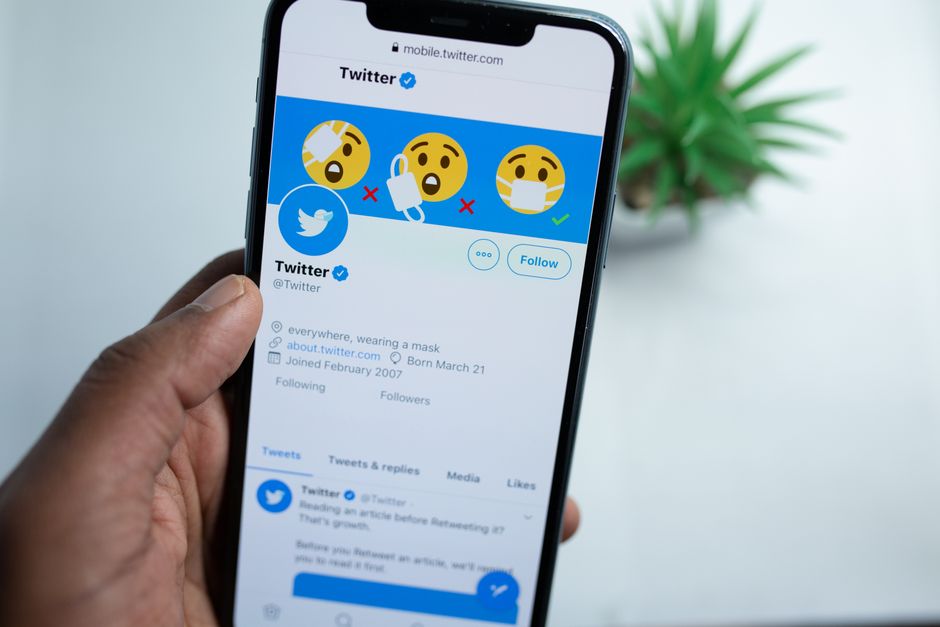
Начните с установки вашей учетной записи как личной и отключения автоматической публикации в партнерском приложении. В верхнем правом углу откройте «Настройки», а затем «Параметры», чтобы заблокировать, кто может просматривать эти твиты. Этот непоколебимый базовый уровень конфиденциальности помогает вам контролировать видимость перед любым действием.
Разрешения имеют значение: при включении интеграций предоставляйте только минимальный объем доступа к данным, необходимый для функциональности, а затем нажимайте кнопку публикации, чтобы инициировать передачу в партнерское приложение.
Тщательно выбирайте параметры аудитории: выберите конфиденциальность или ограниченную видимость в процессе публикации и подтвердите нижние элементы управления перед публикацией.
Авторы сохраняют контроль над контентом при публикации; если вы являетесь автором, вы можете решить, остается ли данный элемент неподвижным в приложении-получателе, хотя, возможно, потребуется настроить его позже. Вы не можете полагаться на одно действие, чтобы отменить все после публикации.
Решения о публикации: вместо автоматической публикации выберите ручную публикацию, чтобы можно было просматривать текст, медиафайлы и метаданные; это снижает вирусное распространение непреднамеренного материала.
Аудит после публикации: начните с проверки фактической аудитории в настройках; если контент был неправильным, вы не можете мгновенно обратить действие вспять, вы можете удалить или перенастроить параметры, что делается для сохранения контроля.
Финальное примечание: поддерживайте базовый уровень конфиденциальности, документируйте решения, которые соответствуют вашему рабочему процессу, и помните, что каждое изменение требует быстрой проверки учетной записи и настроек перед повторным нажатием кнопки публикации.
Устранение распространенных проблем и исправления для публикации твитов в Snapchat
Начните с практических советов для пользователя: проверьте связь учетных записей и правильное разрешение на публикацию photovideo в сопутствующем приложении. На android-устройствах отключите оптимизацию аккумулятора для помощника и запустите простую тестовую публикацию, чтобы подтвердить возможность перекрестной публикации. Такая быстрая проверка действительно экономит время.
Если проблемы не исчезнут, проверьте настройки, повторно авторизуйте подключение стороннего приложения и подтвердите, что разрешение на публикацию photovideo предоставлено. Очистите кэш, выйдите из системы и войдите в нее снова, а также просмотрите любые сообщения, объясняющие, почему попытка публикации не удалась; посмотрите контент, созданный для тестирования.
Когда контент исчезает из ленты после публикации, это может быть связано с задержкой при развертывании или с ограничениями типа контента. Дождитесь окна подготовки, обновите его и снова поделитесь простым photovideo или последовательностью изображений, которые соответствуют ограничениям.
Кроме того, камео — краткие, выделенные моменты — могут вызывать проблемы с выравниванием; при необходимости отрегулируйте подписи или повторно загрузите.
Чтобы получить неподвижный элемент управления общим доступом, выключите и снова включите его, выйдите из системы и снова войдите в нее или перейдите в другую учетную запись, если это необходимо, и убедитесь, что вы посмотрели статус после каждого шага.
Рекомендации по обеспечению надежности: выбирайте простой контент, соблюдайте ограничения по размеру, проверяйте настройки и делайте сообщения лаконичными. Даже небольшие корректировки могут улучшить возможность публикации.
| Проблема | Симптом | Исправление (шаги) | Советы для Android |
|---|---|---|---|
| Кнопка публикации неподвижна | Элемент управления публикацией неактивен | Повторно авторизуйте ссылку для перекрестной публикации, убедитесь, что вы находитесь в правильной учетной записи, затем повторите попытку из «Настроек»; убедитесь, что разрешение на публикацию photovideo предоставлено | На android разрешите фоновую активность, отключите оптимизацию аккумулятора для помощника и попробуйте еще раз |
| Контент не отображается в целевой ленте | Общий элемент не виден после тапа | Подтвердите работоспособность ссылки, повторно запустите с простым контентом, проверьте учетную запись и статус развертывания | Если развертывание выполняется поэтапно, подождите немного; используйте стабильный интернет и перепроверьте ленту |
| Медиа исчезают после публикации | Photovideo исчезает из ленты | Сжать до разрешенного размера, использовать поддерживаемые форматы, избегать длинных клипов, повторно опубликовать | Сохраните копию; загрузите повторно, если нужно |
| Уведомления не получены | Нет сообщений об успехе после публикации | Повторно авторизуйте, повторно подключите, проверьте связь учетных записей и разрешения на обмен сообщениями | Проверьте элементы управления конфиденциальностью и учетной записью; убедитесь, что учетная запись может получать сообщения |
| Контент заблокирован после обновления развертывания | Элемент отмечен флажком или скрыт | Просмотрите последние изменения политики или настроек, повторно опубликуйте контент с соответствующим мультимедиа | Сделайте контент простым; избегайте мультимедиа с крайними случаями; рассмотрите альтернативные форматы |
Отправить краткий бриф
Укажите сайт, цели, аудиторию и бюджет, чтобы обсудить предложение.