12 лучших инструментов для инфографики в 2026 году - Полное руководство по сравнению

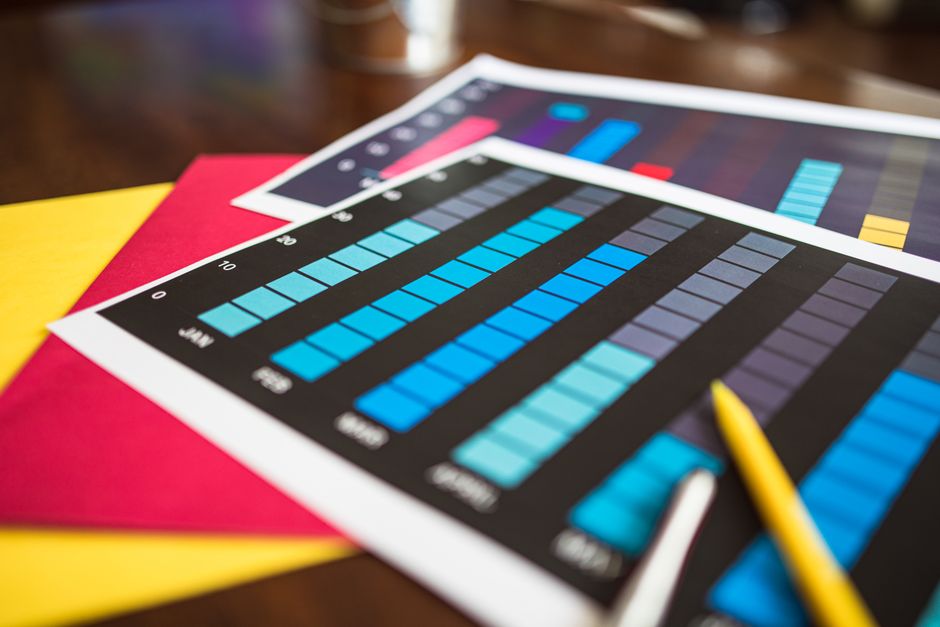
Командам, которым необходимо сотрудничество в реальном времени, следует выбрать Canva в качестве своего основного инструмента на 2025 год благодаря ее обширной библиотеке шрифтов и мощным шаблонам.
В этом руководстве сравниваются 12 инструментов, показываются их сильные стороны и предлагаются четкие сравнения по ценам, форматам экспорта и шаблонам для социальных сетей – сосредотачиваясь только на наиболее релевантных альтернативах, таких как Visme или Piktochart, чтобы предоставить вам действенные выводы.
Для статистической работы обратите внимание на инструменты с надежными виджетами данных и функциями, которые отображают графики из потоков данных в реальном времени.
В повседневных рабочих процессах важна читаемость шрифта и стабильный результат, поэтому проверьте шрифты, цветовые палитры и экспорт в высоком разрешении, чтобы они соответствовали отчетам и информационным панелям.
Начавшись как простые шаблоны, эти платформы трансформируют то, как команды представляют статистику заинтересованным сторонам, предлагая информационные панели и гибкий обмен данными между командами.
Чтобы выбрать правильный инструмент, оцените их избранные функции: интеграция данных, типы диаграмм, совместная работа и ценовые категории, подходящие для вашей команды.
Инструмент 4: PicMonkey – Практический обзор и ключевые сравнения
Выберите PicMonkey для быстрой обработки визуальных материалов с акцентом на изображения, с простым редактором и встроенными элементами управления брендингом. Он подходит частным лицам и небольшим брендам, которые хотят полностью контролировать внешний вид, не используя несколько инструментов. Используйте его, когда вам нужны четкие визуальные эффекты, единообразный брендинг и быстрое выполнение, помня о том, что чистый, целостный набор активов больше понравится вашей аудитории.
Практический снимок:
- Универсальный редактор, который объединяет редактирование фотографий, шаблоны и инструменты брендинга в едином рабочем процессе.
- Сотни шаблонов и дизайнерских ресурсов упрощают создание публикаций в социальных сетях, баннеров и коротких инфографик.
- Brand Kit хранит логотипы, цвета и шрифты для их будущих проектов, обеспечивая единообразный брендинг во всех активах.
- Варианты вывода включают PNG, JPG и PDF; для слайдов, совместимых с pptx, экспортируйте активы и вставьте их в презентацию.
- Интуитивно понятное меню и короткая кривая обучения делают его подходящим для создателей, которые хотят быстрых результатов без крутой кривой обучения.
Ключевые сравнения с designcap и другими конкурентами:
- designcap фокусируется на широком выборе шаблонов для инфографики; PicMonkey добавляет в тот же рабочий процесс более мощные инструменты для редактирования фотографий и управления брендом.
- PicMonkey делает упор на профессиональный редактор и преемственность брендинга, в то время как некоторые конкуренты больше склоняются к простому просмотру шаблонов.
- Для команд или отдельных лиц, стремящихся к быстрому созданию визуальных материалов полного бренда, PicMonkey предлагает оптимизированный путь от изображения до брендированного вывода.
Для кого это лучше всего:
- Индивидуальные авторы, создающие личное портфолио или присутствие в социальных сетях.
- Небольшие бренды, которым нужен единообразный брендинг без управления несколькими инструментами.
- Производители социальных графиков, баннеров и коротких презентаций, требующих быстрого выполнения.
Как начать и быстрый рабочий процесс:
- Начните новый проект, выбрав соответствующий формат (пост в социальной сети, баннер, флаер или слайд презентации).
- Просмотрите сотни шаблонов в небольшом меню и выберите тот, который соответствует вашему направлению брендинга.
- Откройте редактор, поменяйте изображения местами, настройте цвета и вставьте свои логотипы и шрифты, хранящиеся в Brand Kit.
- Доработайте с помощью направляющих выравнивания, настроек текста и световых эффектов, чтобы сохранить профессиональный вид.
- Экспортируйте в формате PNG, JPG или PDF; для графики, готовой к pptx, сохраните активы и вставьте их в слайды по мере необходимости.
- Сохраняйте активы и версии для своих следующих проектов, чтобы оптимизировать будущую работу.
Практические советы для достижения максимальных результатов:
- Поддерживайте короткую, согласованную цветовую палитру во всех активах, чтобы усилить брендинг.
- Используйте изображения с высоким разрешением и применяйте единый стиль обрезки, чтобы поддерживать связную сетку по всем публикациям.
- Используйте Brand Kit, чтобы ускорить будущую работу и убедиться, что каждый актив соответствует истории бренда.
- При представлении визуальных материалов клиенту экспортируйте полный набор (логотип, образцы цветов и образец слайда), чтобы показать согласованность.
Цены, бесплатная пробная версия и ценность
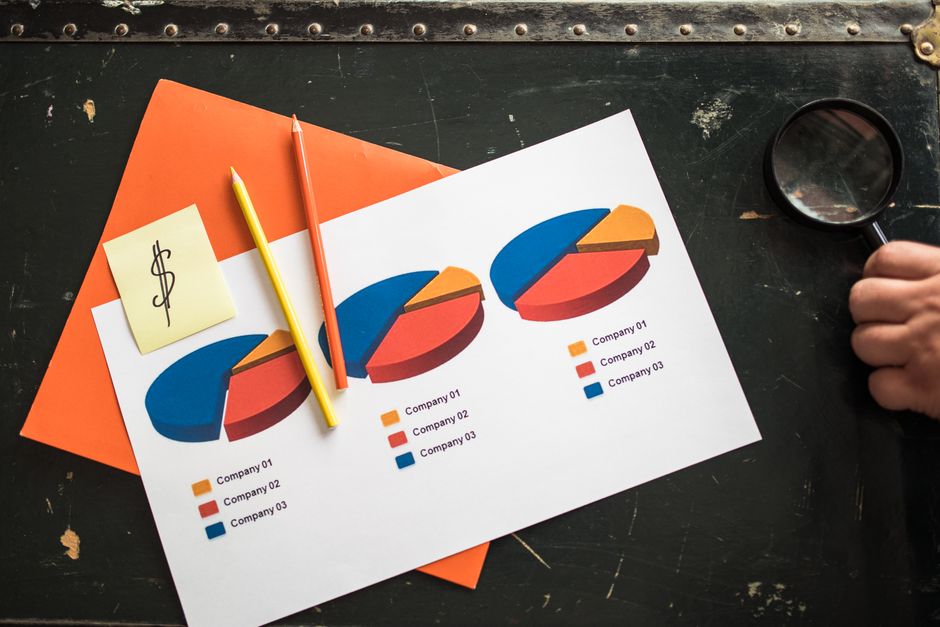
Начните с бесплатного плана infogram, чтобы протестировать основные визуальные эффекты, а затем перейдите на Pro, если вам нужны более качественные инфографические экспортные данные и больше диаграмм. Этот путь сводит к минимуму риск, пока вы оцениваете соответствие своей команде; используйте этот подход для их сравнения бок о бок.
Цены на основные инструменты соответствуют простой схеме: бесплатный уровень, затем платные планы, которые открывают больше шаблонов, виджетов данных и возможностей для совместной работы. infogram предлагает бесплатную, Pro и Business. Pro обычно стоит около 19 долларов в месяц, а Business — около 59 долларов в месяц при ежегодной оплате. piktocharts использует Starter, Pro и Teams, при этом Starter стоит около 15 долларов, Pro — около 25 долларов, а Teams — около 79 долларов в месяц. Однако эти цифры могут варьироваться в зависимости от рекламных акций или ежегодной оплаты, поэтому ознакомьтесь с текущими условиями.
Бесплатные пробные версии обычно длятся 7–14 дней, что позволяет вам протестировать импорт данных, типы диаграмм и параметры экспорта без каких-либо обязательств. Если вам нужны фирменные шаблоны или командные рабочие процессы, убедитесь, что план включает в себя комплект бренда и элементы управления администратора. Сравнивая время выполнения небольших инфографических проектов, вы увидите, какой инструмент поддерживает вас в ритме и в рамках бюджета.
Для большинства команд основная ценность заключается в балансе между качеством и возможностью настройки. infogram выделяется отшлифованной графикой и быстрыми визуальными данными; piktocharts выигрывает, когда вам нужны легко настраиваемые шаблоны и более гибкие макеты. Помните, как часто вы экспортируете, нужны ли вам интерактивные элементы для веб-использования и сколько у вас сотрудников. Каждый выбор влияет на общую ценность и долгосрочные затраты.
При принятии решения помните об элементе, который имеет наибольшее значение: форматы экспорта, шаблоны и простота обновления данных. Для тех, кому нужна потрясающая инфографика для клиентских презентаций, основной план должен обеспечивать экспорт в высоком разрешении и доступ к обширной библиотеке шаблонов. Для текущих кампаний командные функции и общие библиотеки повышают долгосрочную ценность.
Моя рекомендация: начните с infogram Free, чтобы подтвердить потребности, затем выберите основной план, который включает в себя виджеты данных и готовую к работе графику. Если вы склоняетесь к тяжелой кастомизации шаблонов и графике, готовой к автономной работе, piktocharts Pro или Teams может быть лучшим выбором. В обоих случаях бесплатный пробный период поможет вам проверить соответствие, прежде чем принимать долгосрочные решения.
Библиотека шаблонов и варианты настройки
Выберите инструмент с широкой библиотекой шаблонов и детальной настройкой, чтобы любой член вашей команды мог быстро предоставлять визуальные материалы, соответствующие бренду, работая над желаемым внешним видом и сокращая длительные производственные циклы. Стремитесь к тысячам шаблонов, десяткам фонов и широкой цветовой палитре для охвата информационных панелей, размещения логотипов и маркетинговых материалов, а также к инструменту для удаления фона, когда вам нужны чистые края.
Ищитеvisme-подобные генераторы и редактирование на уровне элементов, чтобы вы могли менять текст, значки, диаграммы и кривые, не нарушая выравнивание. Мощная библиотека позволяет применять фоны, наложения и логотипы к слайдам одним щелчком мыши, а также включает в себя набор логотипов для защиты целостности бренда.
Упорядочивайте шаблоны по категориям, чтобы переключаться между контекстами, независимо от того, создаете ли вы маркетинговые материалы или отчеты для клиентов. Сохраняйте пользовательские макеты в качестве шаблонов для повторного использования, делитесь ими между командами и блокируйте ключевые элементы для обеспечения согласованности при обслуживании нескольких брендов. Используйте папки и избранное для быстрого доступа к нужному активу и параметры экспорта, чтобы можно было повторно использовать активы в презентациях.
Для команд, обслуживающих несколько брендов, общий набор фирменного стиля ускоряет работу: примените единую палитру, правила логотипа и типографику ко всей инфографике. Если вам нужно удалить фон, инструмент для удаления фона экономит время и сохраняет чистые края на широких холстах. Поскольку вы можете продвигать рекламные акции и пояснения к продуктам с помощью сплоченных визуальных эффектов, вы будете тратить меньше времени на настройку каждого элемента и поддерживать высокое качество вывода.
Шаблоны на основе данных охватывают диаграммы, графики, выноски и элементы легенды. Используйте генераторы для последовательного сопоставления данных с визуальными элементами, что позволит вам масштабировать их от одного отчета до длинной серии информационных панелей. Помимо статических визуальных эффектов, получите доступ к анимированным элементам для иллюстрации тенденций и кривых без дополнительных усилий.
Еще одна быстрая проверка: выберите шаблон, соответствующий желаемому внешнему виду, замените логотип, настройте цветовую кривую и экспортируйте как PNG или SVG. Проверьте вывод в нескольких размерах на разных фонах, чтобы сохранить читаемость. Если вам нужен инструмент для удаления фона фотографий, протестируйте его на нескольких изображениях; если это не удастся, поищите альтернативу с более чистыми краями. С помощью этих шагов вы значительно ускорите производство и сократите количество раундов проверки.
Возможности экспорта: форматы, разрешение и брендинг
Рекомендация: Экспортируйте основную инфографику в формате SVG для универсальности и брендинга; объедините ее с PNG с высоким разрешением для веб-сайтов и готовым к печати пакетом PDF для соответствия различным каналам.
SVG остается основным форматом для логотипов, значков и векторных диаграмм. Он остается четким на любом холсте и хорошо интегрируется со страницами html5. Для панелей с большим количеством фотографий добавьте PNG-24 с прозрачностью или JPEG высокого качества (качество 85–90), чтобы сохранить разумный размер файлов. Для печати и обмена документами создайте пакет PDF (по возможности предпочитайте PDF/X или PDF/A).
Рекомендации по разрешению: по возможности сохраняйте вектор, чтобы избежать пикселизации, затем экспортируйте растр в эквиваленте 2x или 3x для веб-дисплеев. При выборе форматов для каждого канала отдавайте предпочтение SVG для основного брендинга и сохраняйте растровый экспорт для фотографий. Для печати ориентируйтесь на 300 dpi; для веб-сайтов достаточно 72–96 dpi, но экспортируйте не менее 1500 пикселей в ширину для читаемости на настольных компьютерах.
Элементы управления брендингом: встройте цветовой профиль sRGB и заблокируйте основные шрифты, чтобы предотвратить смещение; добавьте список готовых стилей, соответствующих брендам клиента. Включите цветовую палитру, размещение логотипа и переключатель водяных знаков. Тот же подход работает с visme и визуальными элементами клиента, чтобы стать согласованным набором, который удовлетворит бренды.
Новички могут начать с добавленных пресетов, которые выводят лучшие значения по умолчанию; используемые шаблоны позволяют легко превратить черновик канвы в шедевр. Для команд предоставьте рабочий процесс генератора, который создает несколько форматов за один раз; это отлично подходит для обмена между сайтами и типографиями.
Недостаток: некоторые инструменты добавляют метаданные или теряют мелкие градиенты при экспорте в PNG или JPEG; протестируйте экспорт, сравнив панель фотографий и векторную панель, чтобы убедиться, что качество остается неизменным во всех форматах. Чтобы смягчить ситуацию, поддерживайте основной вектор SVG и растрируйте его только при необходимости.
Контрольный список для быстрого выбора форматов: перечислите форматы по каналам – основной вектор (SVG) для брендов и вставок html5, растр для фотографий (PNG-24 или JPG), готовый к печати PDF со встроенными шрифтами и профилями. Такой рабочий процесс позволяет хранить файлы в компактном виде, сокращает количество ошибок и превращает экспорт в надежную рутину, которая обеспечивает согласованность visme и удовлетворяет заинтересованные стороны.
Совместная работа, обмен данными и командные рабочие процессы
Начните с общего рабочего пространства, управляемого единой системой проектирования, и которое является основным центром создания ваших инфографических проектов. Назначьте 2 администраторов и 3–6 участников, установите четкие разрешения и создайте центральную библиотеку активов, чтобы все использовали согласованные шрифты, цвета и значки во всех активах. План премиум-класса помогает сохранить целостность бренда и ускорить утверждения.
Используйте designcap в качестве примера для совместной работы, где мастер помогает в адаптации, и команда сотрудничает в режиме реального времени. Храните все файлы, заметки и отзывы в одном месте, чтобы внимание оставалось на дизайне, а не на поиске активов. Рабочее пространство должно поддерживать информационные комментарии, структурированные редакции и простой обмен данными с внешними заинтересованными сторонами, не покидая платформу.
Для ясности ведите три связанных списка: активы (включая измененные логотипы), пересмотры и утверждения. Используйте цветовую палитру для обозначения статуса (черновик, на рассмотрении, завершен) и убедитесь, что все, от участников до рецензентов, могут быстро определить текущее состояние. Этот процесс сокращаетMisscommunication и ускоряет циклы обратной связи, оставляя больше времени для творческих исследований, выходящих за рамки рутинных проверок.
Обмен данными и передача становятся бесшовными благодаря интеллектуальным пресетам: создавайте предварительные просмотры, делитесь одним щелчком мыши и контролируйте доступ по ролям. Этот подход позволяет привести ваш рабочий процесс в соответствие с рекомендациями бренда vistacreates, обеспечивая единообразие бренда. Руководство по адаптации на основе мастера помогает новым участникам сразу же приступить к работе, в то время как автоматически сохраненные версии предотвращают потерю данных.
Метрики и ожидания: отслеживайте время выполнения, количество редакций и удовлетворенность заинтересованных сторон с помощью простого, ориентированного на конфиденциальность отчета. Этот путь разработан таким образом, чтобы быть легким как для участников, так и для редакторов, уделяя внимание качеству дизайна, а не логистике. Благодаря этим шагам совместная работа, обмен данными и командные рабочие процессы остаются плавными, масштабируемыми и согласованными со всем процессом создания инфографики.
Доступность платформы и обучающие ресурсы
Отдавайте предпочтение инструментам, которые бесперебойно работают в Интернете, на настольных компьютерах и мобильных устройствах, и интегрируйте обучающие ресурсы в свой рабочий процесс; такая настройка сводит к минимуму время до первой публикации и поддерживает продуктивность вашей команды на разных устройствах.
Большинство платформ основано на облачных сервисах и автоматически синхронизируется между устройствами, с нативными приложениями для iOS и Android; это позволяет вам перемещать работу и оставаться в синхронизации. Планы оплачиваются и оплачиваются на ежемесячной или ежегодной основе, и многие поставщики предлагают бесплатную пробную версию для проверки соответствия, прежде чем брать на себя какие-либо обязательства. Эта настройка может позволить мгновенно редактировать на нескольких устройствах.
Для адаптации ищите удобные для пользователя редакторы перетаскивания, настраиваемые шаблоны и красочные макеты разделов, которые можно мгновенно настроить и перемещать. Учебный центр должен представлять темы в четких разделах с практическими аспектами и краткими пунктами, что ускоряет переход к профессионализму. Шаблоны, созданные для таких тем, как маркетинг и обучение, ускоряют настройку. Факт, который нужно знать: правильные ресурсы сокращают время наращивания усилий и повышают внедрение; это необходимо учитывать при оценке вариантов.
| Инструмент | Доступность платформы | Обучающие ресурсы | Примечания |
|---|---|---|---|
| Инструмент A | Интернет, Windows, macOS, iOS, Android | Официальные учебные пособия, база знаний, цветные руководства | Платный; оплачивается ежегодно; редактор перетаскивания; мгновенно доступные стартовые шаблоны |
| Инструмент B | Интернет, iOS, Android | Видеосериал, тематическая учебная программа, форум сообщества | Бесплатный план; платные дополнения; доступен путь начального уровня |
| Инструмент C | Интернет, настольные приложения, мобильные устройства | Интерактивные туры, разделы с возможностью поиска, шаблоны, созданные для команд | Платный; оплачивается ежемесячно; автоматическое обновление уроков |
| Инструмент D | Только Интернет с автономным режимом | Часто задаваемые вопросы, пошаговые руководства, раздел быстрого запуска | Платный; мгновенная поддержка адаптации |
Похожие статьи
- 10 лучших инструментов для отслеживания локального рейтинга 2025 - Подробное руководство по сравнению
- 25 лучших инструментов искусственного интеллекта для Performance Marketing - Руководство по сравнению
- 14 лучших маркетинговых инструментов на основе искусственного интеллекта в 2025 году: Подробное руководство
Отправить краткий бриф
Укажите сайт, цели, аудиторию и бюджет, чтобы обсудить предложение.